Monitoring Stock
Check the physical quantity of each material, packaging part, or finished product by location and batch.
Before You Start
Section titled “Before You Start”- Inventory transactions exist for the items you want to review.
- Location hierarchy is configured.
-
Open Reports > Inventory Report.
-
Use the Location filter to scope results (all locations or a specific location tree).
-
Use Search report… to narrow by item, SKU, location, or batch/lot.
-
Review table fields shown on this report:
- Item
- SKU
- Location
- Batch / Lot
- Quantity
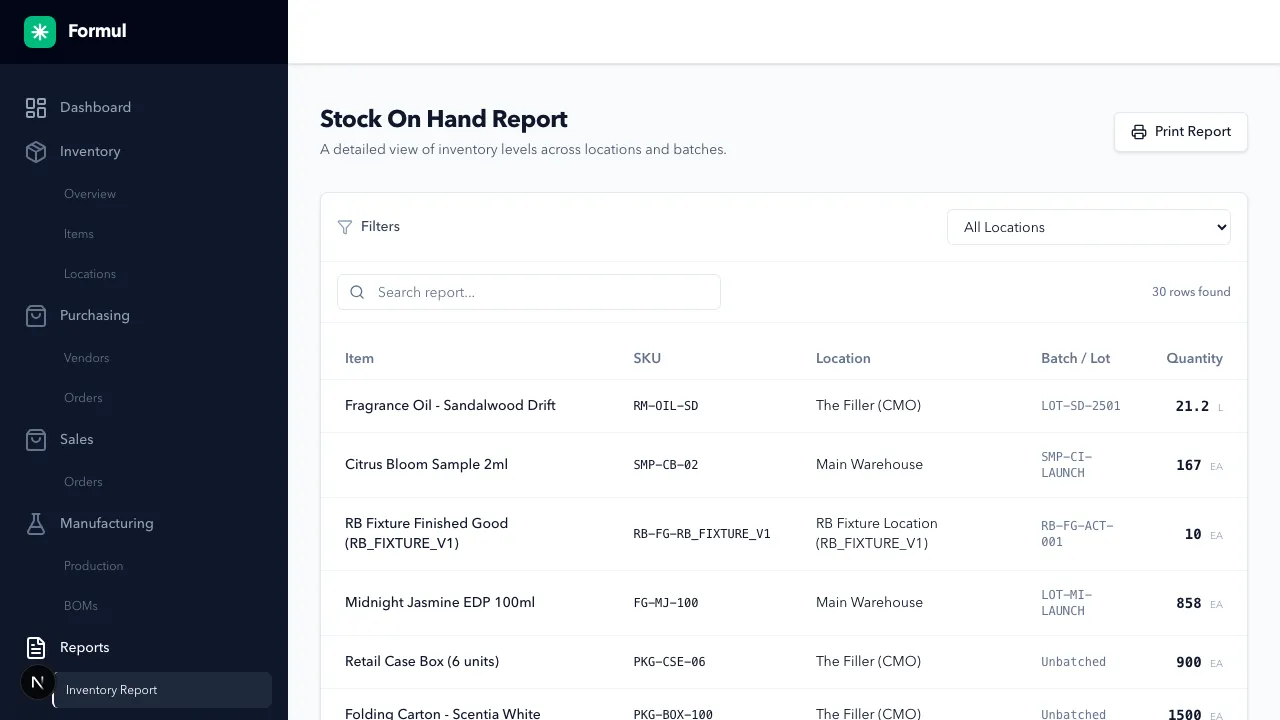
-
Choose a parent location to include its child locations, such as all the shelves within your studio.
Expected Result in Formul
Section titled “Expected Result in Formul”- Each row identifies the item, lot, location, and physical quantity on hand.
- Reservations don’t reduce Quantity in this report. To decide what you can promise to an order, also check the item’s Available stock in Inventory.
Use the location filter before placing a new purchase order. The material you need may already be on another shelf or at another site and only need a transfer.
If Something Looks Wrong
Section titled “If Something Looks Wrong”- Confirm location filter scope includes child locations when expected.
- Cross-check against recent receipts, transfers, production, and shipments in the ledger.
Next Step
Section titled “Next Step”Review financial value impact in Inventory Valuation.