Purchase Orders
Record an ingredient or packaging order, including quantities, agreed prices, and the expected delivery date. A purchase order is often shortened to PO.
Before You Start
Section titled “Before You Start”- At least one vendor exists.
- At least one purchasable item exists.
- You know expected quantities, dates, and unit prices.
-
Navigate to Purchasing > Orders.
-
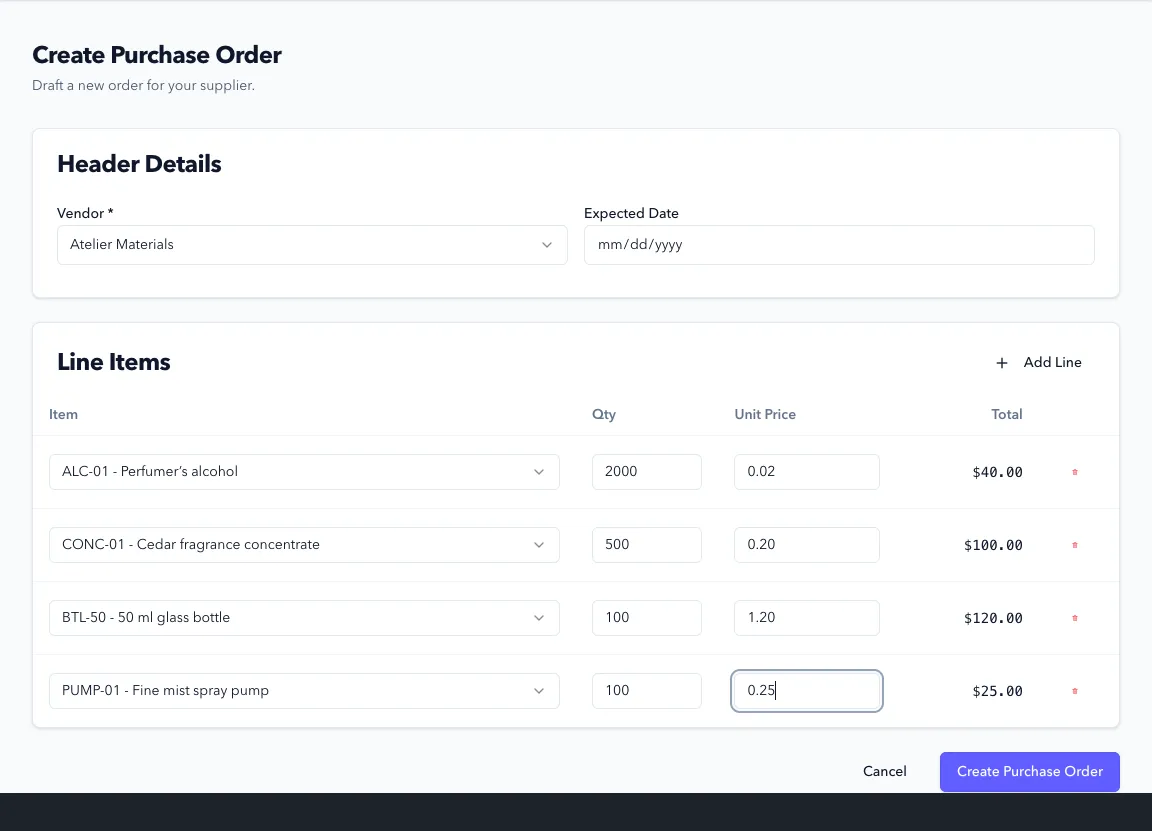
Click Create Purchase Order.
-
Select the vendor and expected date so you can see which deliveries are due.
-
Add each item, its quantity, and its unit price. Use the item’s stock unit: if you track an ingredient in grams, enter the amount in grams and its price per gram.
-
Click Create Purchase Order to save a draft.
-
Open the draft and click Submit Order to move to
OPEN(confirmation title: Submit Purchase Order).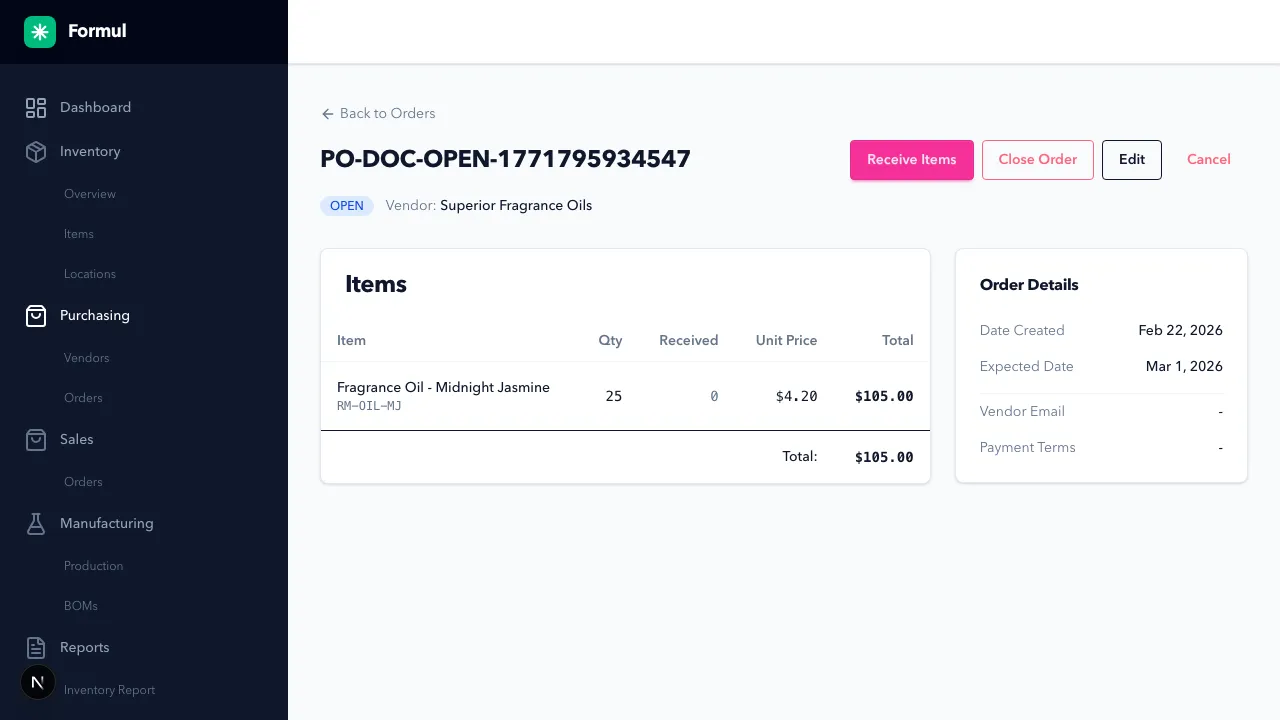
-
Use available order actions according to status:
DRAFT: edit, submit, cancel, delete.OPEN: receive, edit, cancel, close.PARTIALLY_RECEIVED: receive remaining lines or close.
Expected Result in Formul
Section titled “Expected Result in Formul”- Order number is created and visible in the order list.
- A draft doesn’t add stock or allow receiving. Submit Order opens it for receiving.
- The status shows whether the delivery is still due, partly received, or finished.
What Each Status Means
Section titled “What Each Status Means”| Status | What you can do | What it tells your team | Stock impact |
|---|---|---|---|
DRAFT | Edit, submit, cancel, delete | Order is not committed yet | No inventory movement |
OPEN | Receive, edit, cancel, close | Receiving can start against this PO | No movement until a receipt is posted |
PARTIALLY_RECEIVED | Receive remaining lines, close | Some lines are in stock, some still outstanding | Each receipt posts RECEIPT ledger entries |
CLOSED | View only | No more receipts expected | No new PO receipts should be posted |
CANCELLED | View only | Order is intentionally stopped | No further receiving allowed |
Only Confirm Receipt adds stock, through RECEIPT transactions. Submitting, cancelling, or closing an order doesn’t change physical quantities. Closing a partly received order stops the remaining delivery from being received; it doesn’t remove what already arrived.
If Something Looks Wrong
Section titled “If Something Looks Wrong”- If submit fails, confirm required header and line fields are complete.
- If receive is unavailable, confirm status is
OPENorPARTIALLY_RECEIVED. - If values look wrong, verify line item unit prices before receiving.
- If a PO was closed too early, no additional receipts can be posted through normal PO receiving flow.
- If a user tries to receive while still in
DRAFT, Formul blocks the action by status.
Next Step
Section titled “Next Step”Receive stock and post inventory in Receiving Inventory.