Inventory Valuation
See the recorded value of the stock you have left, grouped by item and batch.
Before You Start
Section titled “Before You Start”- Receipt and production transactions are posted.
- You understand quantity and unit-of-measure context for tracked items.
-
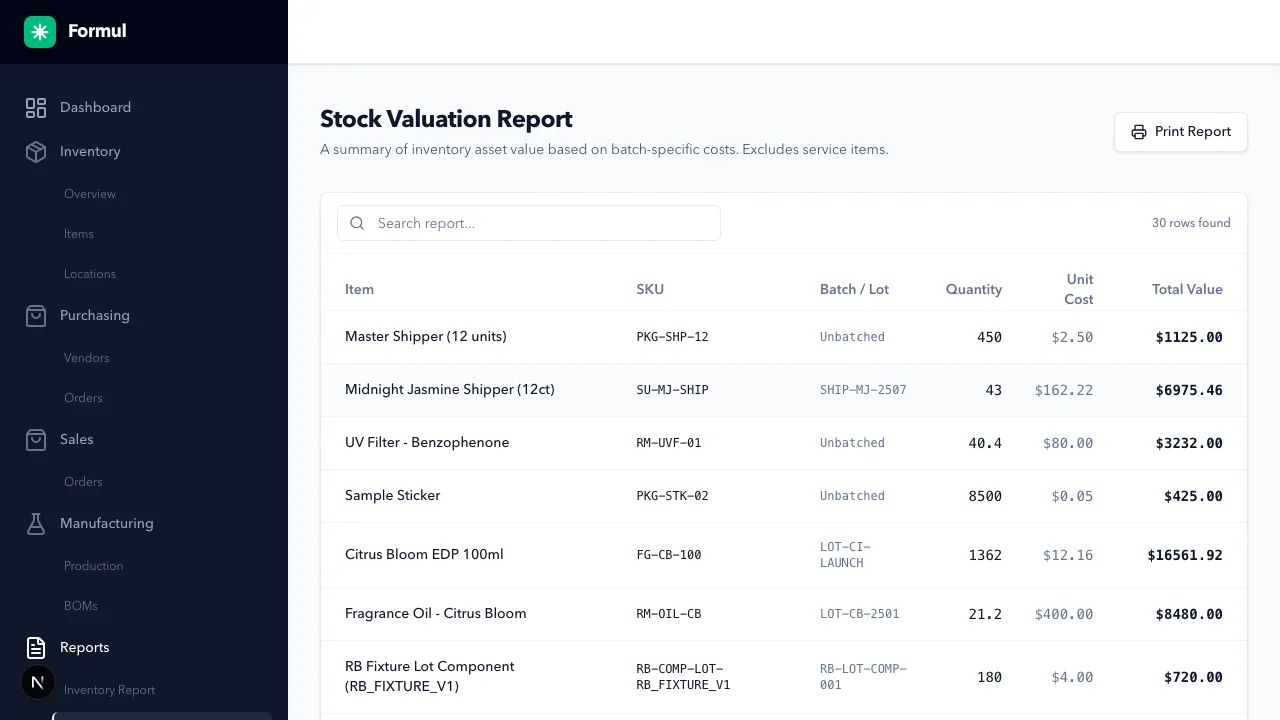
Navigate to Reports > Valuation Report.
-
Use Search report… to find an item, stock code (SKU), or batch.
-
Review each item and batch’s columns:
- Quantity
- Unit Cost
- Total Value
-
If a value looks wrong, open that item in Inventory and review its Transaction History against the purchase or production record.
Expected Result in Formul
Section titled “Expected Result in Formul”- Each row shows the remaining physical quantity for an item and batch, valued at the item’s current weighted average unit cost.
- Total Value is that stock’s value, rounded to your currency’s precision. Rounding across lots preserves the item’s total value.
- Reservations don’t reduce physical quantity or value in this report. Service items are excluded because they aren’t physical stock.
Where the Cost Comes From
Section titled “Where the Cost Comes From”The report uses each item’s weighted average cost (WAC): the average unit cost of its stock, weighted by the quantities recorded. That same item cost is applied across its lots, so the report agrees with the inventory overview. For example, two equally sized receipts at different unit prices contribute equally to the average; a larger receipt has more influence.
The total follows your recorded purchases and production. Missing receipts, incorrect stock units, or a wrong production recipe can all change the result.
If Something Looks Wrong
Section titled “If Something Looks Wrong”- Check purchase unit prices and confirm they use the item’s stock unit.
- Compare production output quantities and component usage with the batch record.
- If a migrated item’s value shows Unresolved, complete opening valuation reconciliation before treating its value as complete.
- A zero unit cost can be valid. If it’s unexpected, check receipts, production, and adjustments against your records.
Next Step
Section titled “Next Step”Follow a batch’s material and shipment history in Traceability.