Setting Up Your Workspace
Open your workspace so you can start adding materials and recording batches.
Before You Start
Section titled “Before You Start”- Your Formul sign-in details.
- If you’re joining an existing organization, an invitation from its administrator.
- Open Formul and sign in.
- If this is your first organization, complete the organization setup and plan prompts. Use your business name so your team can recognize the workspace.
- On Choose a workspace, select your organization. If you belong to one organization and it’s already active, Formul opens it for you.
- Check the organization name before entering stock. The sidebar includes:
- Inventory
- Purchasing
- Manufacturing
- Sales
- Reports
Expected Result in Formul
Section titled “Expected Result in Formul”- Your organization’s dashboard opens.
- Items, stock, suppliers, batches, and orders you create belong to this organization.
Why Workspace Setup Matters
Section titled “Why Workspace Setup Matters”Each organization has its own records. If you use more than one organization, select the right one before receiving materials or recording production; those actions change that organization’s inventory.
Account Access During Setup
Section titled “Account Access During Setup”On the plan setup screen, open your avatar beside Account in the header. The menu includes Manage account and Sign out. Use Sign out if you’re signed in to the wrong account.

Switch or Add a Workspace
Section titled “Switch or Add a Workspace”Choose Switch workspace in the sidebar to open Choose a workspace. The chooser stays open even if you currently belong to only one organization. Select a workspace by name to open it.
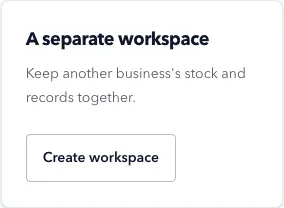
When Create workspace is available, use it for a separate business. Complete the organization form, then follow the plan setup for the new workspace. Your existing workspace keeps its records and subscription; creating another organization does not copy stock or orders into it.
If you see Workspace limit reached, this account has used its workspace creation allowance. You can still open or switch between the workspaces listed here. Contact support if you need another workspace.
If Something Looks Wrong
Section titled “If Something Looks Wrong”- If your organization isn’t listed, check that you signed in with the email address that received the invitation and accepted it.
- If setup returns you to the plan screen, check that the organization’s trial or subscription is active.
- If you can view records but can’t change them, ask your administrator to check your access and the organization’s subscription.
- If Formul cannot check your workspace allowance, choose Try again. You can still open an existing workspace while the check is unavailable.
- If switching or opening the creation form fails, try the action again. If a workspace has no address, ask its administrator for help.
Next Step
Section titled “Next Step”Follow Your First Batch, or invite your team if someone else will help set up.