Your First Batch
Work through one complete batch: receive the materials, make the product, ship an order, and check the stock and lot history left behind.
Choose a product you already know how to make. Starting small makes it easier to compare Formul with the materials and finished goods on your shelves.
Before You Start
Section titled “Before You Start”- Open your workspace.
- Have your usual production recipe, received quantities, supplier lot numbers, and purchase prices to hand.
- Decide which stock unit to use for each item, such as
g,kg, orea(each). - If you’re moving existing stock, finish that import before receiving the same quantities again through a purchase order.
-
Add what you buy and what you make.
In Inventory > Items, use Create Item for each material, packaging part, and finished product. Give each a unique stock code, called a SKU (stock keeping unit), and a stock unit you’ll use consistently.
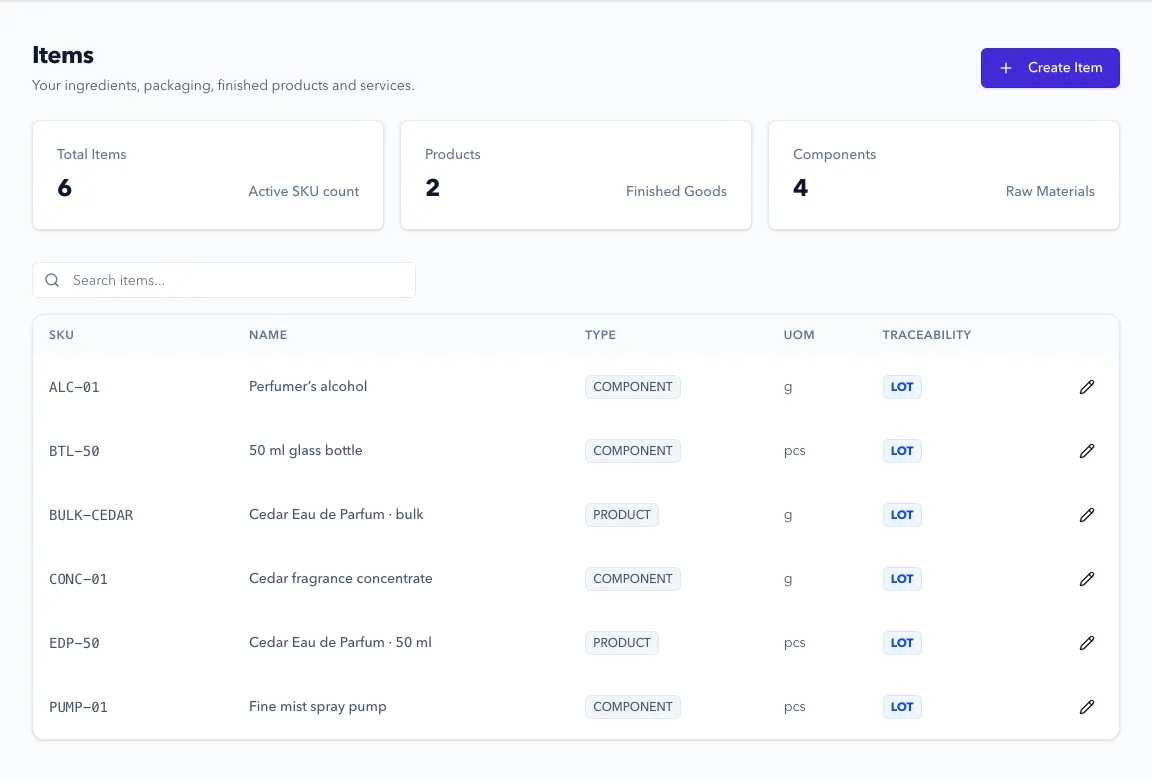
Choose COMPONENT for purchased materials and PRODUCT for what you make. Choose LOT traceability when you need to follow separate supplier or production batches. See item setup for the field choices.
-
Set up a stock location.
In Inventory > Locations, choose Create Location. Start with the place you keep your stock, such as your workshop, and use INTERNAL for its type. Add shelves or rooms as child locations only when that detail helps your team.
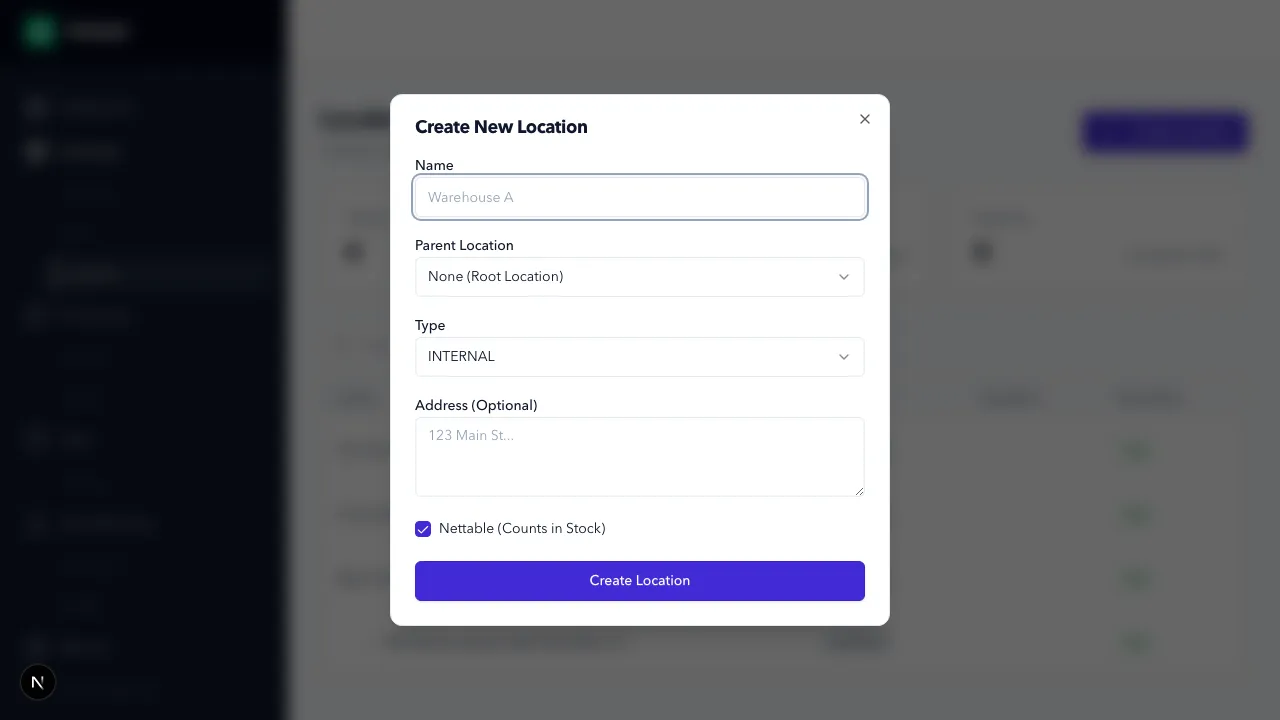
The production location determines where Formul looks for materials and where it records finished output. Set up locations.
-
Receive the materials.
Add the supplier in Purchasing > Vendors. In Purchasing > Orders, create a purchase order, add the items with their quantities and unit prices, and use Submit Order. When the delivery arrives, choose Receive Items.
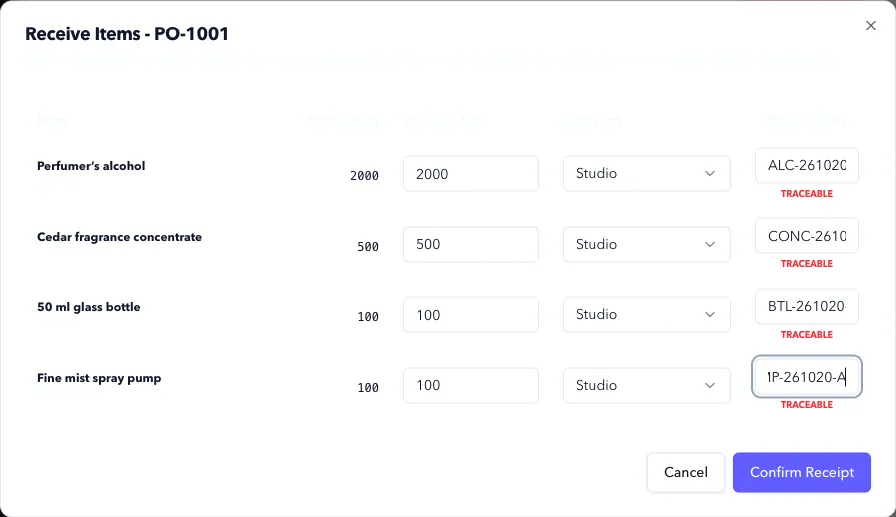
Enter what actually arrived, where you put it, and the supplier’s lot number for lot-tracked items. Confirm Receipt adds stock; creating the purchase order doesn’t. Follow receiving.
-
Save the production recipe.
Go to Manufacturing > Formulas (BOMs) > New BOM. A bill of materials (BOM) is the recipe that defines the materials and packaging used for a batch. Set the output item and normal output quantity, then add each component and its quantity in that component’s stock unit.
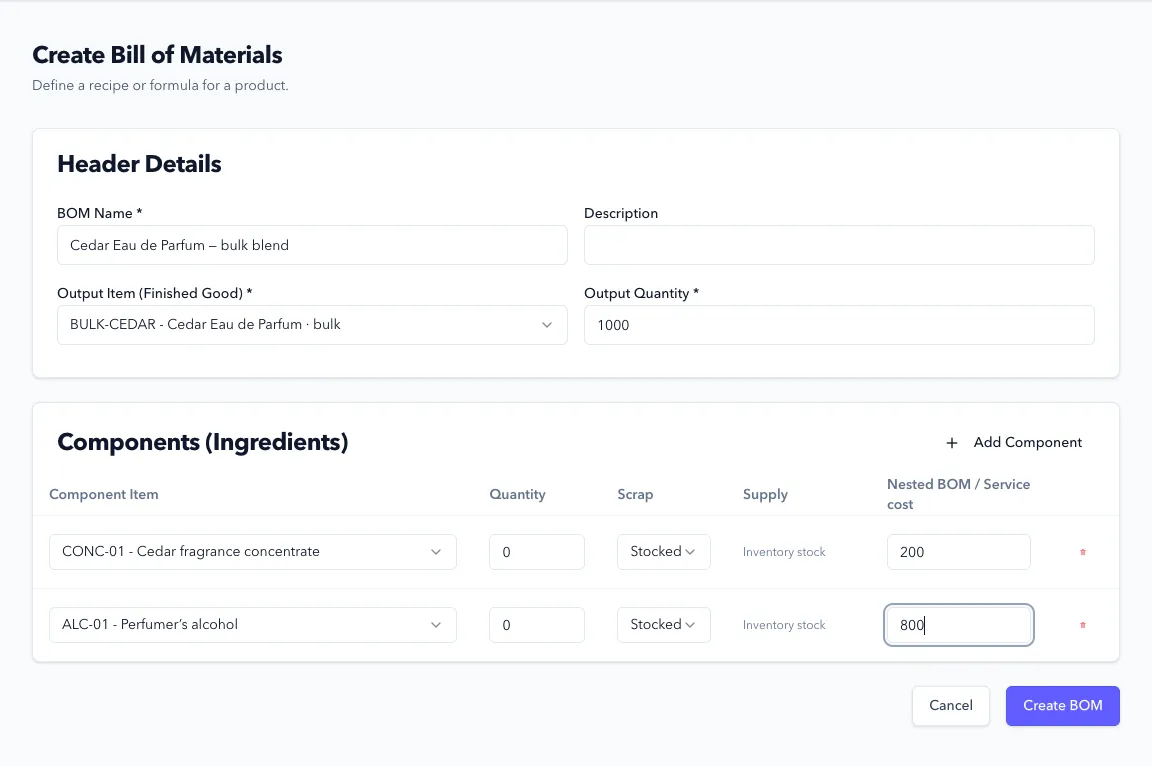
Keep physical inputs set to Stocked when you intend to consume inventory you already hold. Create a production recipe explains the choices for intermediate products and production in more than one stage.
-
Record the batch.
In Manufacturing > Production > New Work Order, select the item to produce, recipe, location, and target quantity. Use Plan Order, then Release Order to reserve the components when you’re ready to commit them to the run.
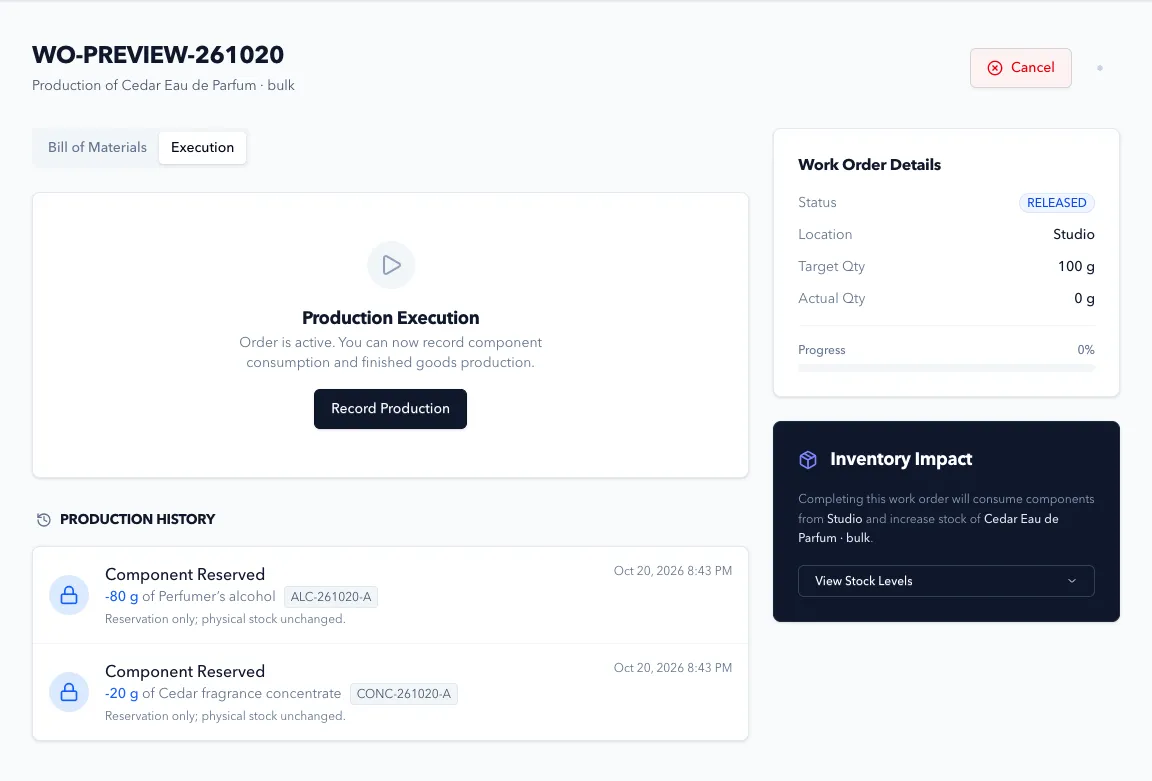
Once you’ve made the physical batch, choose Record Production. Review the output quantity, assign its batch code, and select the component lots you used before choosing Complete Production. Record a production batch covers partial runs and the current limits on component quantities.
-
Reserve and ship an order.
In Sales > Orders, choose Create Sales Order and add the customer, product, quantity, and price. Open Allocate Inventory to select the stock you’ll pick, including the finished lot if tracked, and save the allocation.
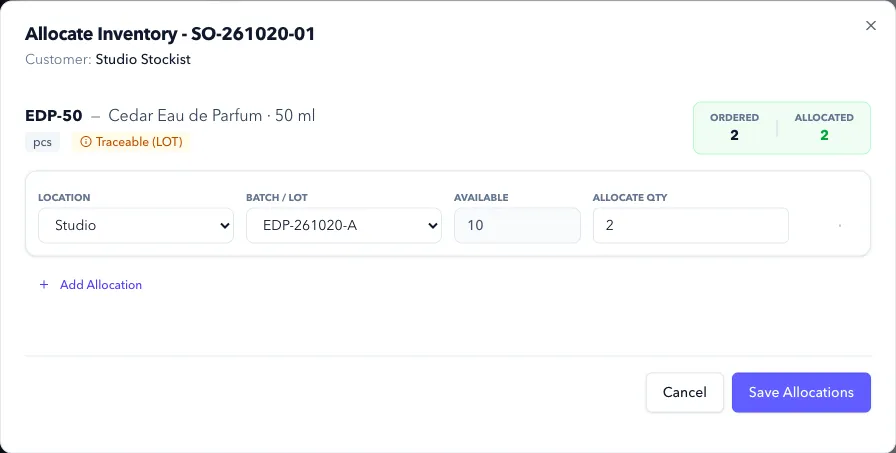
Once every line is fully allocated and the goods are picked and packed, choose Fulfill Order and Confirm Fulfillment. Create an order and fulfill it for the full steps.
-
Compare the records with the shelf.
In Inventory, check that remaining material and product quantities match what you physically hold. For a lot-tracked product, open Reports > Traceability and enter its batch code to follow the recorded inputs and customer shipments.
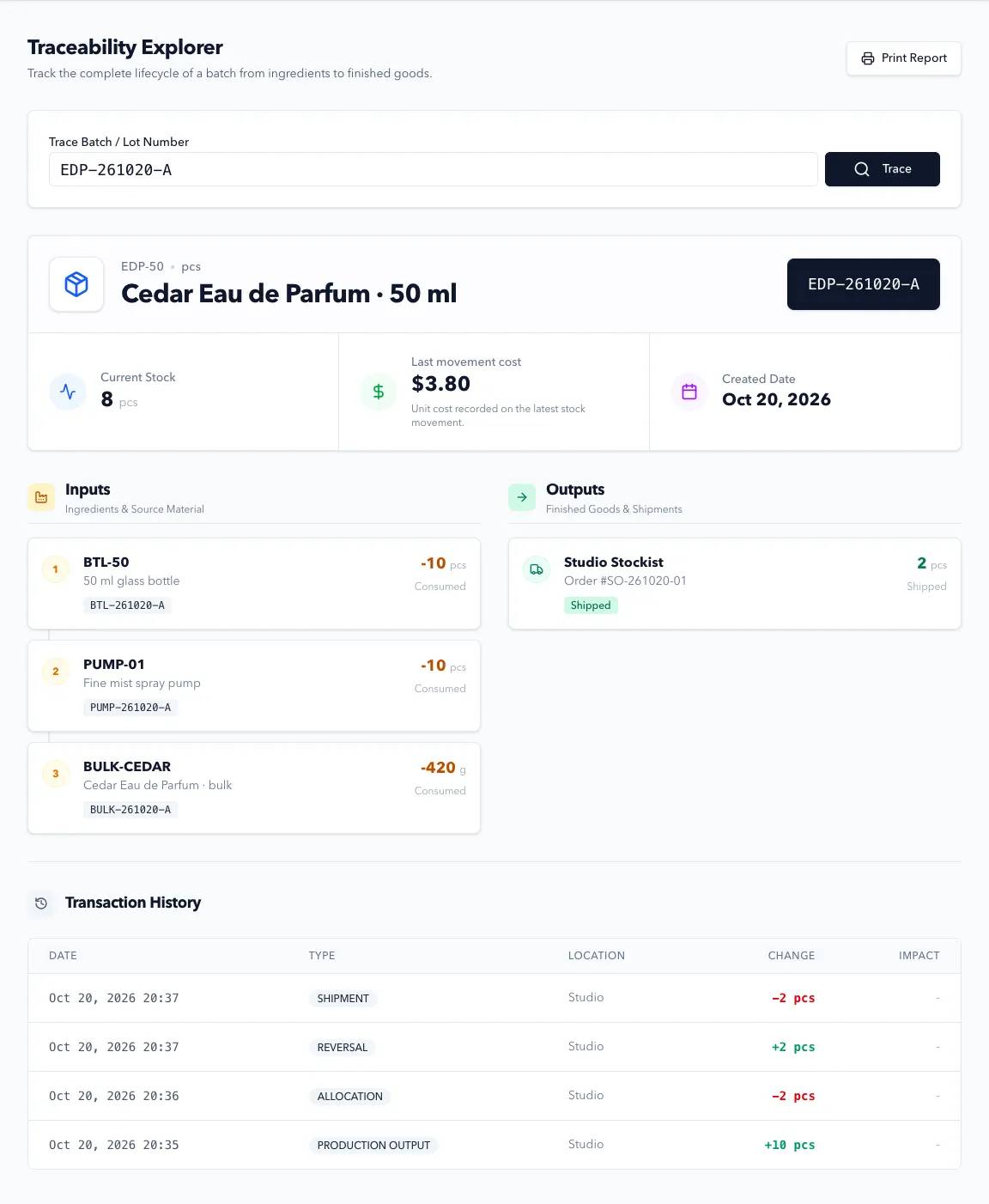
Use transaction history if a balance needs explaining, or traceability if an expected lot link is missing.
Expected Result in Formul
Section titled “Expected Result in Formul”Your received materials have decreased by the quantities recorded in production. Finished output has increased stock, and the shipped order has removed the units you sent. Unused materials and unsold products remain on hand.
| Action | Stock effect |
|---|---|
| Create or submit a purchase order | No stock movement |
| Confirm Receipt | RECEIPT entries increase stock |
| Release Order | ALLOCATION entries reserve components without removing physical stock |
| Complete Production | PRODUCTION CONSUMPTION removes components; PRODUCTION OUTPUT adds products; REVERSAL entries clear consumed reservations |
| Save sales allocations | ALLOCATION entries reserve products without removing physical stock |
| Confirm Fulfillment | REVERSAL entries clear reservations; SHIPMENT entries remove the shipped products |
Cancelling an unfulfilled sales order releases its reservations. Cancelling a work order before any production is recorded releases its component reservations. Closing a purchase order stops further receipts without removing stock already received.
If Something Looks Wrong
Section titled “If Something Looks Wrong”- You can’t release production: check received quantities, stock locations, units, and reservations held by other orders.
- Quantities look wrong: use each item’s stock unit consistently. Formul doesn’t convert kilograms to grams or weight to volume for you.
- Stock doesn’t match the shelf: look for a duplicate receipt, an unrecorded production run, or a shipment waiting to be fulfilled.
- A batch has no material history: check the lots selected during production. Imported opening balances don’t contain the original production history.
Next Step
Section titled “Next Step”Add the next product using the same pattern. If you make perfume and want a two-stage example, see Example: A Perfume Batch. When your items and locations are ready, connect Shopify.