Connect Shopify
Connect Shopify, map the Formul data needed for safe synchronization, and understand what to do when the integration needs attention.
Before You Start
Section titled “Before You Start”- Use a Formul Admin role and a Shopify account allowed to install apps.
- Create Formul items with the SKUs used in Shopify.
- Create the Formul locations that represent Shopify fulfillment inventory.
- Decide which system owns each operational change. Do not run competing manual and automated updates without a reconciliation plan.
- Open Settings → Integrations → Shopify and start the connection flow.
- Complete Shopify authorization and return to Formul.
- Review the setup guide and resolve SKU and location issues. Formul uses human-readable choices; you should not need internal connection IDs.
- Run synchronization from the provided action when readiness allows it. Formul queues the work, so leaving the page does not cancel a healthy job.
- Review the integration health message. Use the recommended retry, mapping review, reconnect, or support action rather than repeatedly pressing sync.
- Open imported sales orders and verify customer/order totals, lines, allocation readiness, and source links before fulfillment.
What Formul Synchronizes Today
Section titled “What Formul Synchronizes Today”- Incremental Shopify order import and targeted order re-sync.
- SKU and location readiness/remediation.
- Shared connection health and safe recovery actions.
- Supported fulfillment dispatch/replay after a Formul fulfillment.
Inventory publication back to Shopify is not a current production promise. The integration screen is authoritative for the capabilities enabled on your connection.
Preview: starting from Shopify
Section titled “Preview: starting from Shopify”When this path becomes available, Shopify authorization will happen before you choose a Formul workspace. You will still use normal Formul sign-in and workspace setup; authorizing Shopify does not create a subscription or trial.
-
After Shopify authorization and normal Formul sign-in, review the store and Selected workspace on Connect your Shopify store. Choose an existing workspace you administer, then select Connect store to this workspace. Check this choice carefully: imported orders will belong to that workspace.
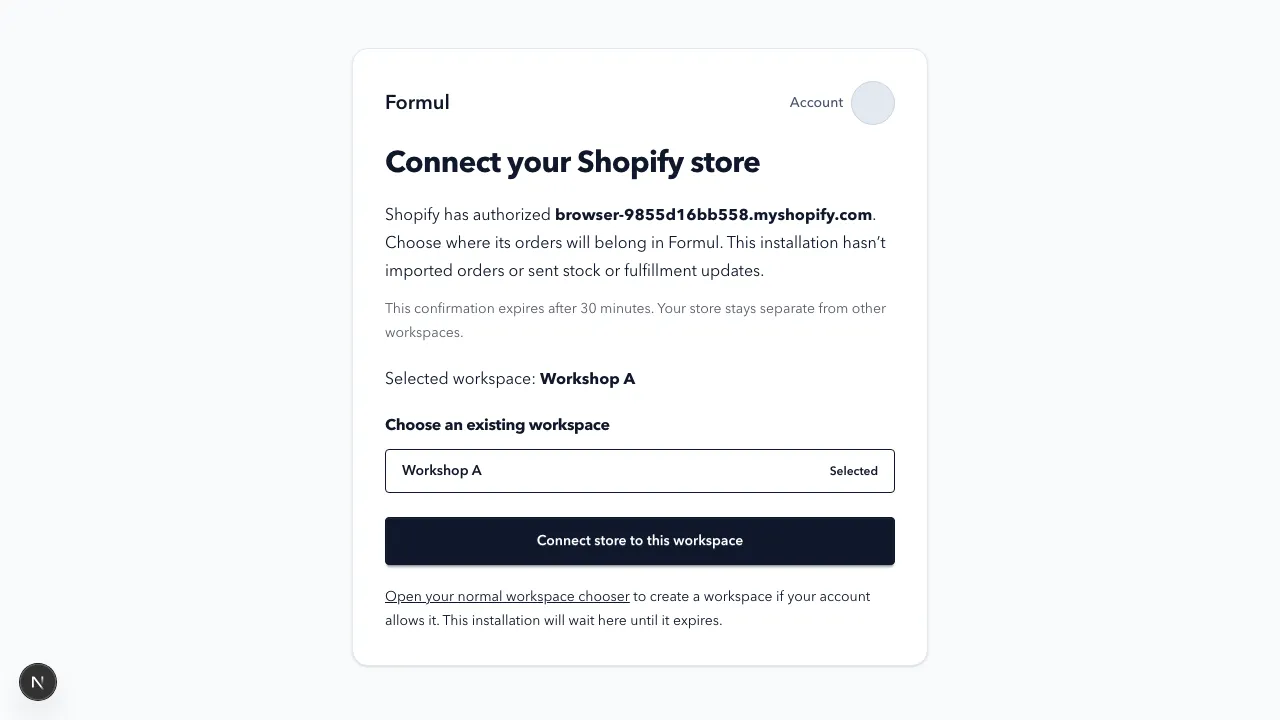
If you used the wrong Formul account, use Account for the normal account and sign-out actions, then sign in again in the same browser. The pending installation remains available until its confirmation window expires.
-
Your connection is saved means Formul retained the connection. Select Open your workspace, then review Shopify setup before importing orders or enabling updates. Saving this connection does not itself import orders or send stock or fulfillment changes. Historical order links may need review.
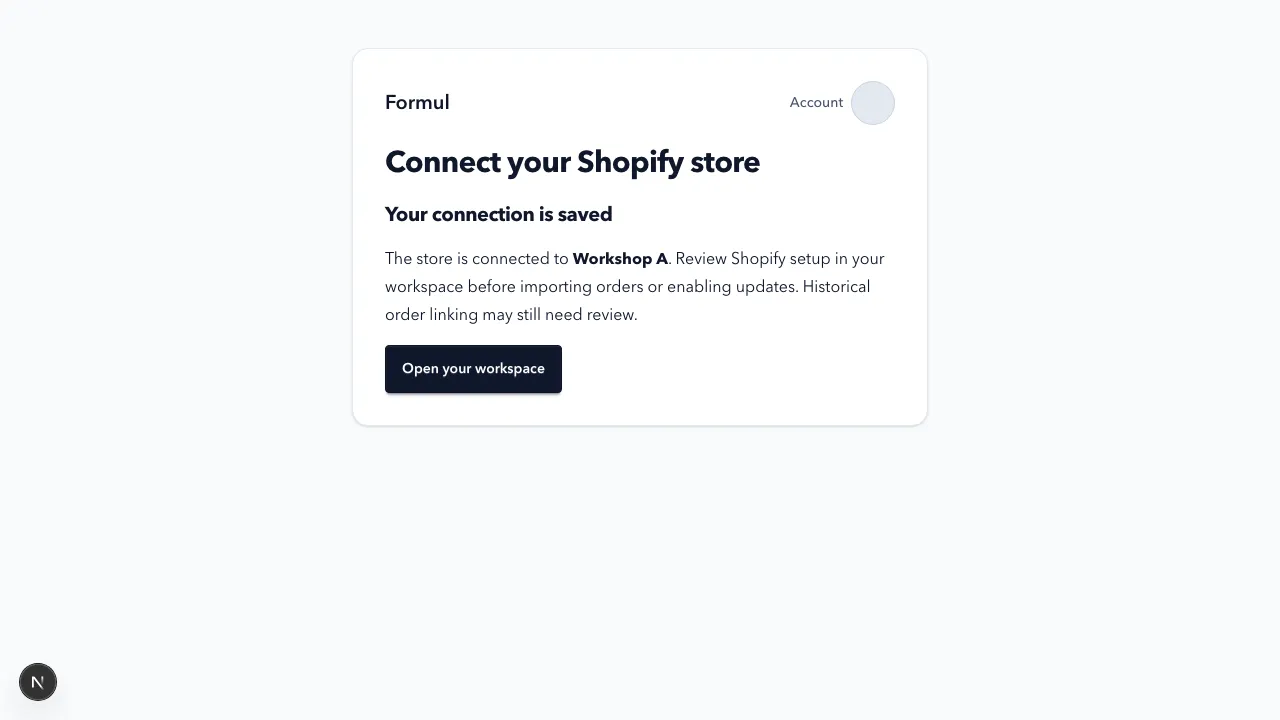
The confirmation window lasts 30 minutes. If it expires, start again from Shopify. If your account or workspace changes, review the new selection before confirming. If Formul cannot check whether the connection was saved, refresh the page first. A saved result can be recovered in the same browser and confirming account/workspace within that window. An inactive workspace or insufficient role must be resolved through normal workspace setup or an administrator.
Customer privacy requests
Section titled “Customer privacy requests”Support handles Shopify customer privacy requests. Keep customer exports and credentials out of ordinary support messages.
Where customer erasure applies, imported customer details and Shopify source labels can be removed while stock movements, quantities and order totals remain unchanged. Do not re-enter erased details to make an old order look complete.
Recovery
Section titled “Recovery”- Review mappings: fix missing or ambiguous SKU/location relationships.
- Retry: use when Formul indicates a transient failure can be retried.
- Reconnect: use when Shopify authorization is no longer valid.
- Contact support: include the shop name, approximate time, and visible Formul message. Do not send tokens, cookies, or raw provider responses.
Continue with Sales Orders and Fulfillment.