Check Stock Transaction History
Find the receipt, production run, reservation, or shipment behind a stock change. Formul keeps these movements in a transaction history, also called the inventory ledger.
Before You Start
Section titled “Before You Start”- You have posted at least one inventory transaction.
- You know the item or batch you want to investigate.
-
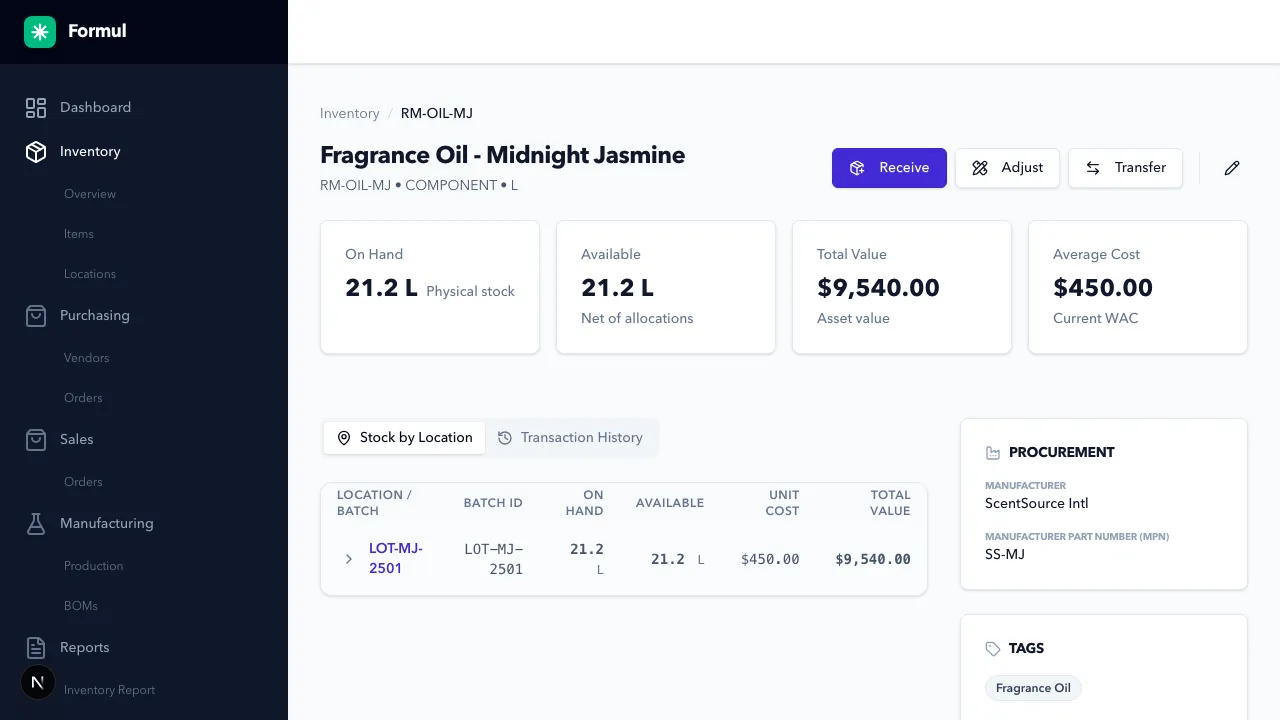
Open Inventory and locate the item.
-
Open item details.
-
Open Transaction History to see movements for the item.
-
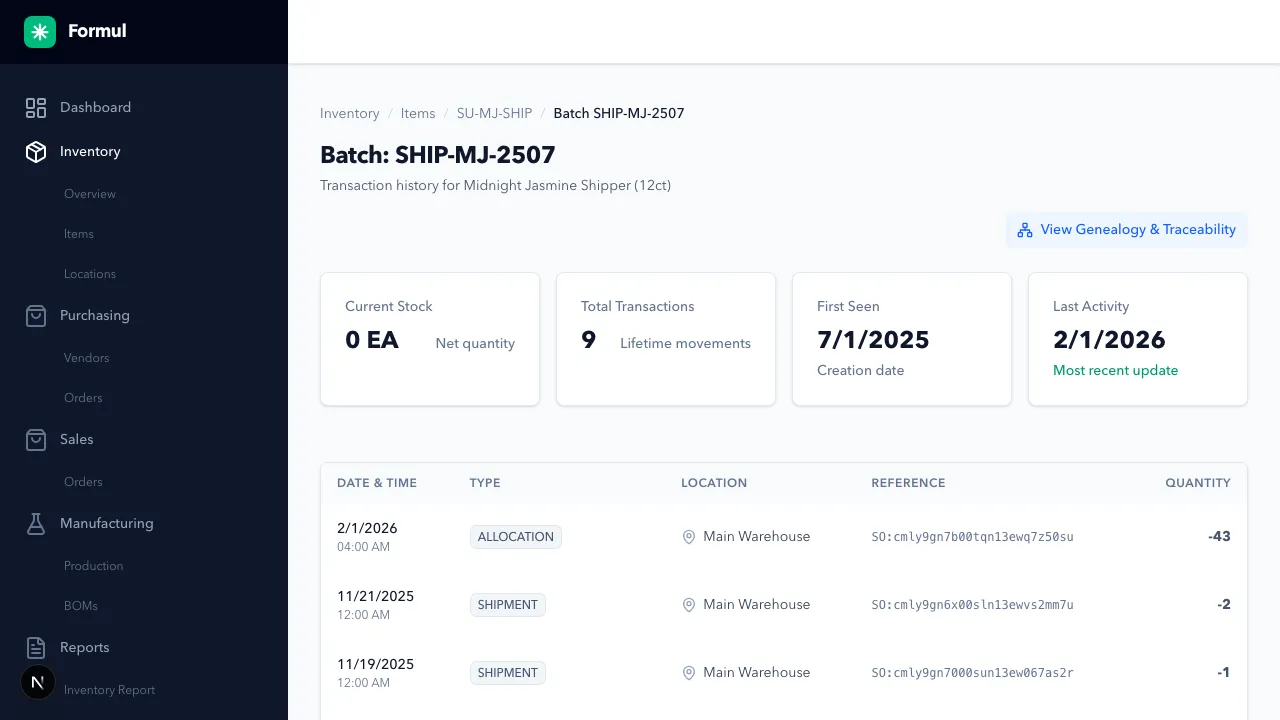
To narrow the review to a lot, open its batch record from the item’s stock view.
-
Confirm transaction type and quantity direction for each row.
Expected Result in Formul
Section titled “Expected Result in Formul”- Each movement shows what happened and the quantity involved.
- Order references help you connect the change to the delivery, production run, or customer order that caused it.
What Each Transaction Type Means
Section titled “What Each Transaction Type Means”| Transaction Type | Plain-English Meaning | Typical Trigger | Quantity Direction |
|---|---|---|---|
RECEIPT | New stock was added into a location. | Receiving against a Purchase Order. | Increases stock (+) |
ADJUSTMENT | Stock was corrected after a count or loss/gain event. | Manual adjust action (damage, recount, shrink, found stock). | Can increase (+) or decrease (-) |
TRANSFER_OUT | Stock left the source location. | Transfer between two locations. | Decreases stock in source (-) |
TRANSFER_IN | Stock arrived at the destination location. | Transfer between two locations. | Increases stock in destination (+) |
PRODUCTION_CONSUMPTION | Components were consumed to make something. | Work Order completion posting component usage. | Decreases component stock (-) |
PRODUCTION_OUTPUT | Finished goods were created by production. | Work Order completion posting output. | Increases output item stock (+) |
ALLOCATION | Stock was reserved for a sales order or production run. | Sales allocation or work order release. | Reduces available stock; physical on-hand stays the same |
REVERSAL | A reservation was released. | Fulfillment, production recording, cancellation, or changed allocation. | Returns reserved quantity to available; physical on-hand stays the same |
SHIPMENT | Reserved/available stock was shipped to a customer. | Sales Order fulfillment. | Decreases stock (-) |
If you are troubleshooting a mismatch, first check whether the change is a reservation (ALLOCATION) or a physical move (SHIPMENT, TRANSFER_*, RECEIPT, PRODUCTION_*, ADJUSTMENT).
For example, reserving 12 bottles from a shelf holding 50 leaves On Hand at 50 and Available at 38. Shipping those 12 clears their reservation and leaves 38 physically on hand. A reservation isn’t missing stock.
If Something Looks Wrong
Section titled “If Something Looks Wrong”- Check whether you’re comparing On Hand or Available.
- Check the location and batch; stock may be on a different shelf or lot.
- Follow the purchase order, work order, or sales order reference and compare it with the physical delivery, batch record, or shipment.
Next Step
Section titled “Next Step”Create inbound supply using Buy Overview.