Set Up Stock Locations
Give stock a clear home so your team knows where to receive materials, make a batch, and pick finished products.
Before You Start
Section titled “Before You Start”- Decide how much detail you need. A small studio can start with one Studio location; add shelves or rooms when you need to distinguish their stock.
-
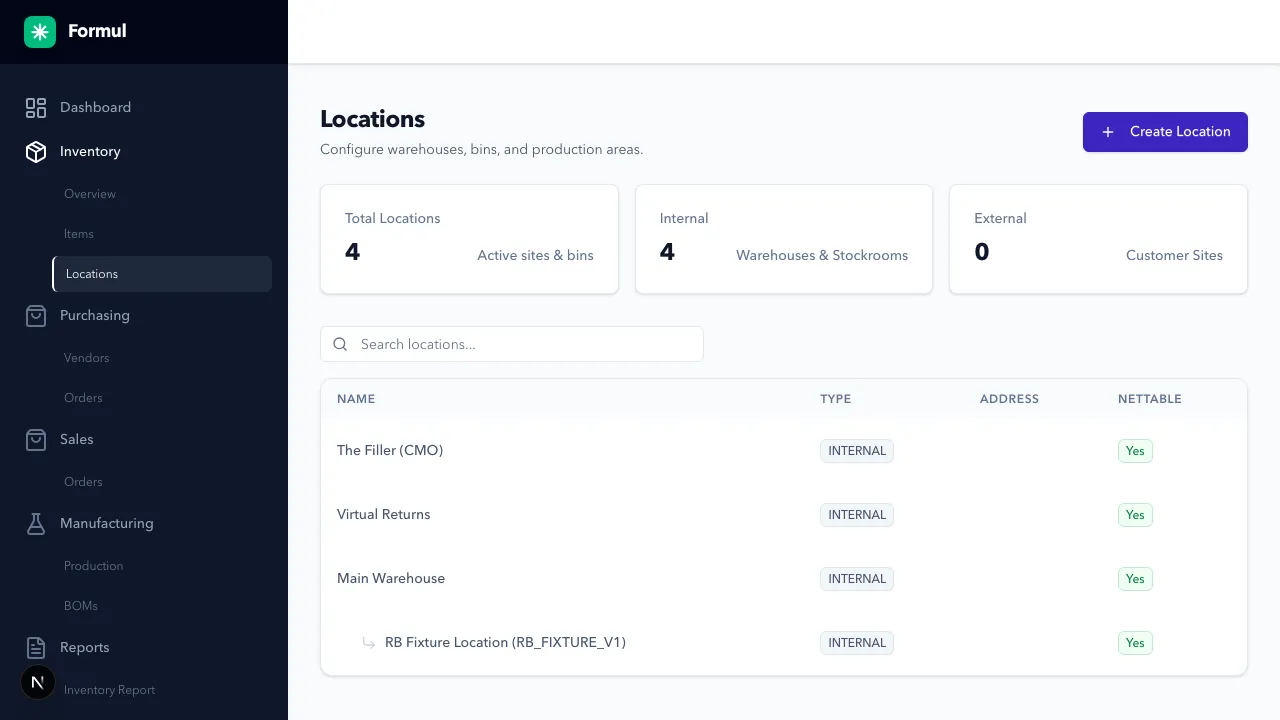
Navigate to Inventory > Locations.
-
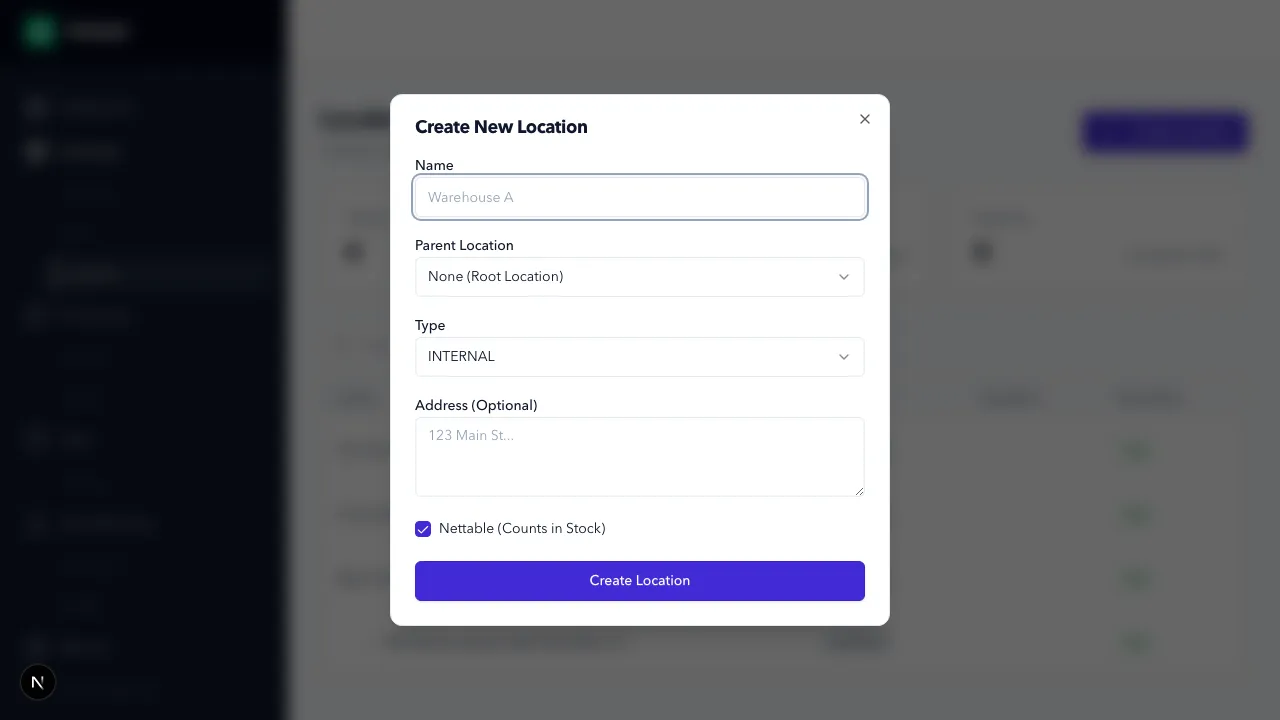
Click Create Location.
-
Enter location fields:
- Name: use a name someone can find physically, such as Studio or Packaging shelf.
- Parent Location (optional): place a shelf under its studio or a room under its site. Production can draw from the selected location and its children.
- Type: choose INTERNAL for stock you hold and use in day-to-day work. The other types describe supplier, customer, or in-transit locations.
- Nettable (Counts in Stock): see the limitation below before using this for stock on hold.
-
Click Create Location and check its parent and name in the list.
-
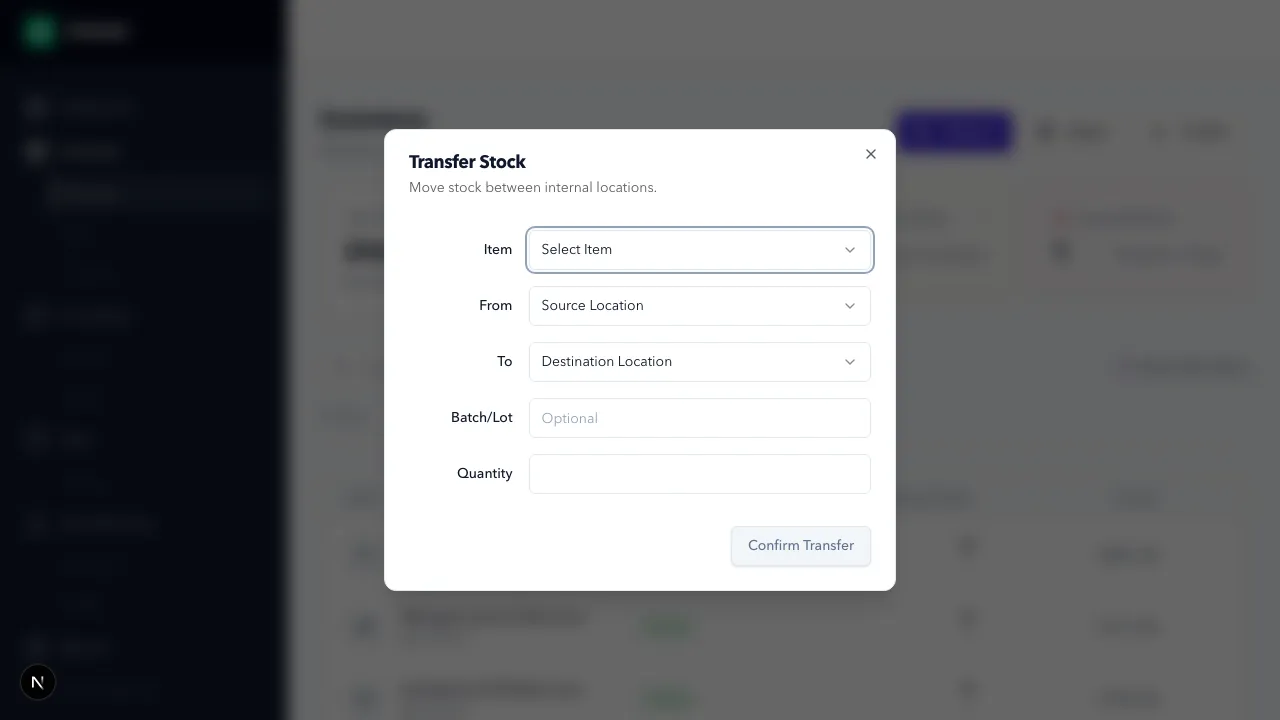
To move stock, use Transfer from inventory/item details and complete source, destination, batch, and quantity.
Expected Result in Formul
Section titled “Expected Result in Formul”- Locations are available in receiving, transfer, production, and fulfillment actions.
- Location hierarchy and attributes are visible on the locations page and reports.
When to Add Child Locations
Section titled “When to Add Child Locations”Use child locations when the shelf matters. For example, Studio might contain Materials, Packaging, and Finished products. This lets you find stock at shelf level while filtering reports to the whole studio.
Location Types in Practice
Section titled “Location Types in Practice”| Type | Use it for | Why it matters operationally |
|---|---|---|
INTERNAL | Owned storage locations you physically manage | Primary source for day-to-day fulfillment and production decisions |
TRANSIT | In-motion stock between internal locations | Prevents mixing in-transit quantities with final putaway locations |
VENDOR | Supplier-side or external supplier context | Keeps purchase-side references separate from owned storage |
CUSTOMER | Customer-side or external customer context | Keeps outbound/return context separate from owned storage |
Stock on Hold
Section titled “Stock on Hold”If Something Looks Wrong
Section titled “If Something Looks Wrong”- If a location isn’t selectable, check its type and the workspace you’re using.
- If rollups look wrong, verify parent assignment.
- If availability decisions look wrong, verify both your nettable policy and the exact source location used in the transaction.
Next Step
Section titled “Next Step”Validate movement history in Understanding the Inventory Ledger.