Add a Supplier
Save a supplier’s name and contact details so you can use them on purchase orders. The app calls suppliers Vendors.
Before You Start
Section titled “Before You Start”- You can create purchasing records in your organization’s workspace.
- You know the supplier’s display name and optional contact details.
-
Navigate to Purchasing > Vendors.
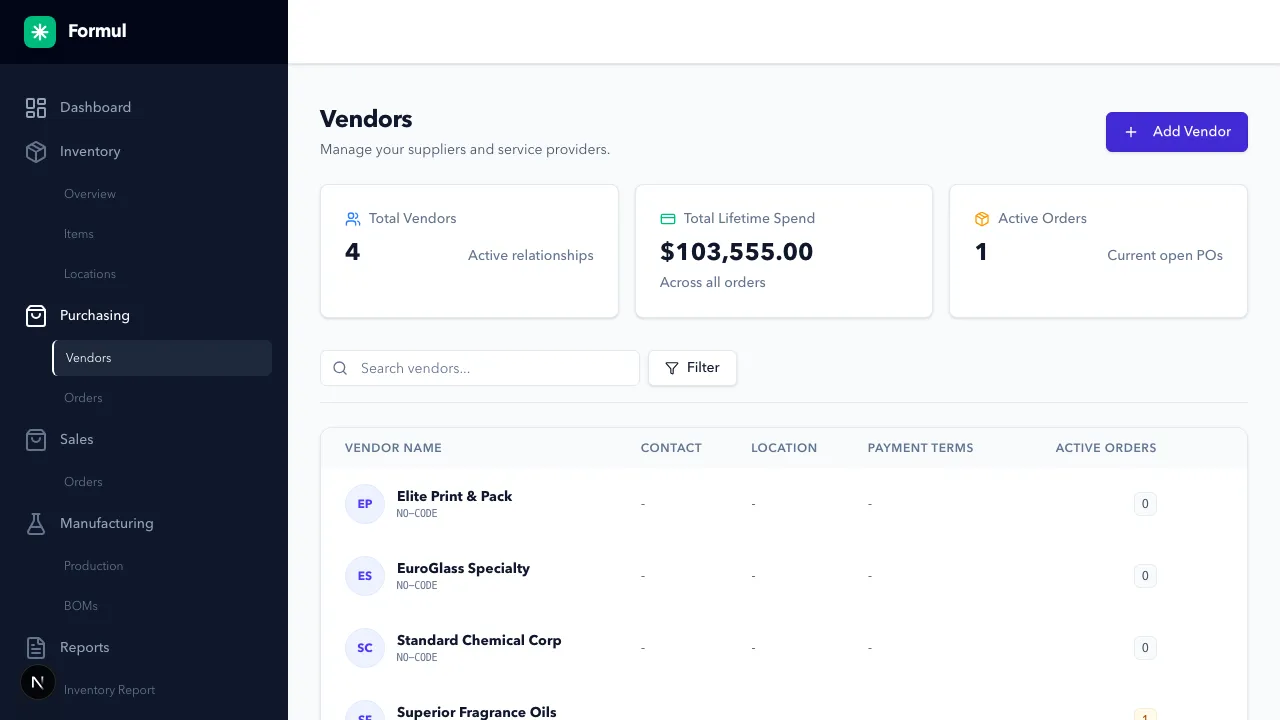
-
Click Add Vendor.
-
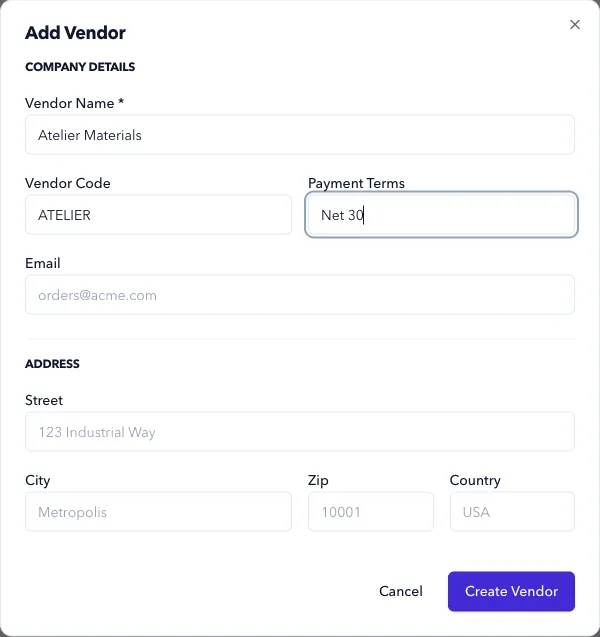
Fill the form:
- Vendor Name: The name you recognize on invoices and order confirmations.
- Vendor Code (optional): A short reference if your team uses one.
- Payment Terms (optional): For example,
Net 30. - Email (optional): Primary purchasing contact.
-
Click Create Vendor.
-
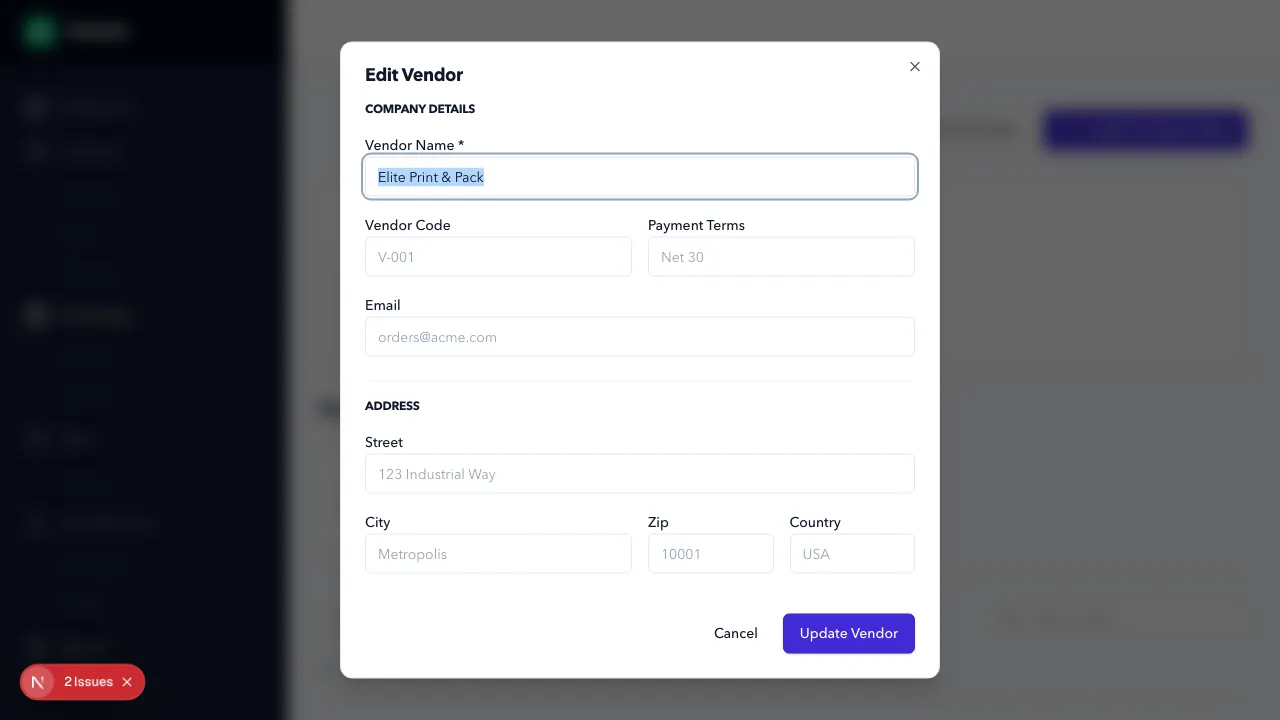
To update a vendor later, use the row Edit action and save.
Expected Result in Formul
Section titled “Expected Result in Formul”- Vendor appears in the vendor list.
- Vendor is selectable in purchase order creation.
Why These Fields Matter
Section titled “Why These Fields Matter”Search the vendor list before adding a supplier to avoid splitting its purchase history between duplicate records. Use Payment Terms to keep the agreed payment timing visible, and Email for your purchasing contact. Saving an email address doesn’t send an order to the supplier.
If Something Looks Wrong
Section titled “If Something Looks Wrong”- Check for duplicate vendor names.
- Confirm required fields are populated.
- Confirm you’re in the right organization’s workspace.
Next Step
Section titled “Next Step”Create your first order in Purchase Orders.