Sales Orders
Record the products a customer ordered, then reserve the stock you’ll pick for them.
Before You Start
Section titled “Before You Start”- Finished product item records.
- Produced or received stock available for allocation. You can create the order before stock is ready, but can’t reserve stock you don’t have.
-
Navigate to Sales > Orders.
-
Click Create Sales Order.
-
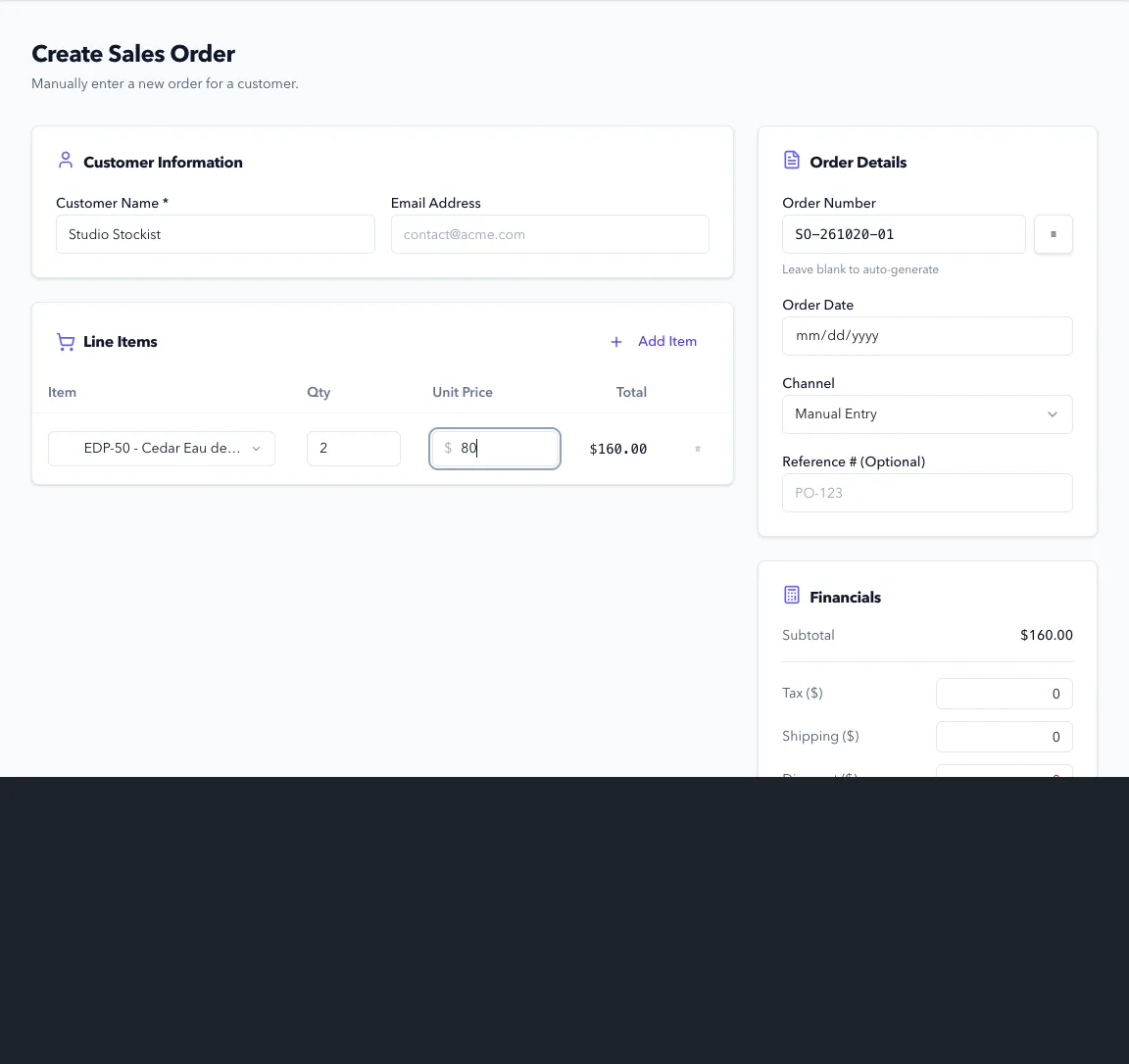
Enter Customer Name and the order details. Add an email address and reference if you need them to identify the order later.
-
Add each finished product, the quantity ordered, and its selling price. Choose the correct size or variant; similar product names don’t make them the same stock item.
-
Click Create Sales Order. It starts in CREATED status without reserving stock.
-
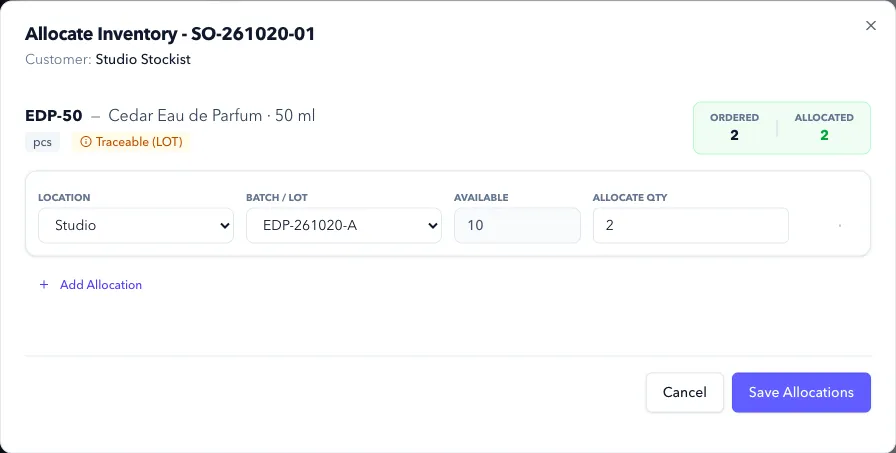
Open the order and click Allocate Inventory.
-
Check the source Location, Batch / Lot, and allocation quantity for each line. Use the finished batch you intend to pick, then click Save Allocations.
Expected Result in Formul
Section titled “Expected Result in Formul”- The order is CREATED before a reservation or ALLOCATED once stock is reserved.
- Allocation reduces Available while On Hand stays the same until shipment.
- ALLOCATED can include a partial reservation. Check each line’s Allocated against Ordered before picking; fulfillment requires every line to be fully allocated.
Recording the correct batch at allocation is what connects the later shipment to that batch’s history. If you pick a different lot, update the allocation before fulfillment.
Sales Order Status to Ledger Impact (Creation + Allocation)
Section titled “Sales Order Status to Ledger Impact (Creation + Allocation)”| Sales order status | What changes in inventory ledger |
|---|---|
CREATED | No ledger entry yet; demand exists but nothing is reserved |
ALLOCATED | ALLOCATION entries are posted; available stock decreases while physical on-hand does not |
CANCELLED (before fulfillment) | REVERSAL entries are posted for active allocations; reservation is released |
If Something Looks Wrong
Section titled “If Something Looks Wrong”- If allocation fails, confirm enough available stock by location.
- If allocation quantity exceeds available stock, Formul blocks the save.
- If order cannot be edited/cancelled, verify current status.
Next Step
Section titled “Next Step”Ship the order in Fulfillment and Shipping.