Record a Production Batch
Record a production run so Formul knows which materials you used, which lots they came from, and how much you made.
Before You Start
Section titled “Before You Start”- A bill of materials (BOM), the production recipe for your output item.
- Received components in the production location or its child locations.
- Your production record and material lot numbers.
-
Navigate to Manufacturing > Production.
-
Click New Work Order.
-
Select Item to Produce, Production Location, Bill of Materials, and Target Quantity. The target uses the output item’s unit, such as grams of bulk product or each finished unit. Only items with a recipe are listed.
-
Click Create Work Order. It starts as DRAFT and hasn’t changed stock.
-
Click Plan Order when the run is scheduled, then Release Order when you’re ready to commit the materials. Release checks stock and reserves the components for this order; they remain physically on hand.
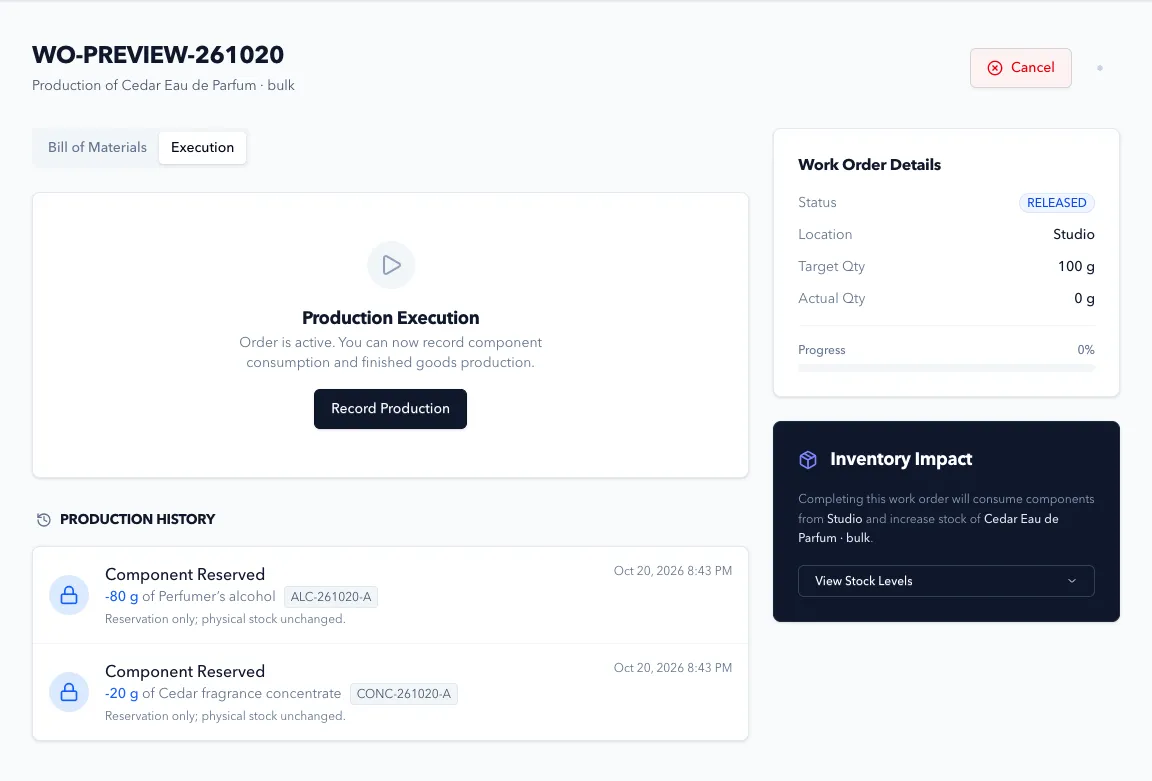
-
Make the physical batch and keep your production record. If you make and store an intermediate product before packaging it, use separate work orders for the stages.
-
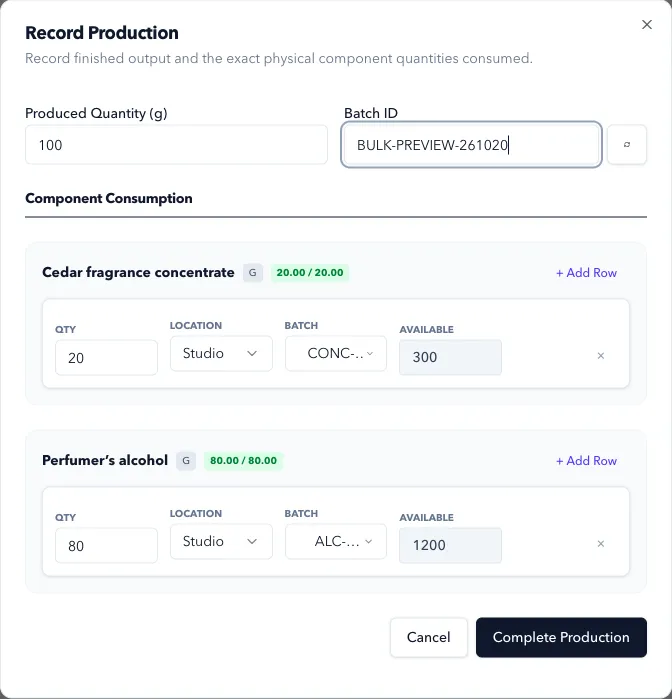
Click Record Production. Enter Produced Quantity for this recording and a Batch ID that matches your batch paperwork or labels.
-
Under Component Consumption, check the source location, lot, and quantity for every component. Split a component across rows if you used more than one lot. The total must match the recipe requirement for the output you’re recording.
-
Click Complete Production. If you recorded less than the remaining target, the order becomes PARTIALLY COMPLETED. Record the later run separately; use its own output batch code if it is a different physical batch.
Expected Result in Formul
Section titled “Expected Result in Formul”- Recorded components leave physical stock and the finished batch enters stock at the work order’s production location.
- The order becomes COMPLETED when total recorded output reaches its target.
- A partial recording adds that output to inventory immediately; you don’t have to wait for the whole order to finish.
What Each Action Does to Stock
Section titled “What Each Action Does to Stock”| Status / action | Inventory impact |
|---|---|
| DRAFT or PLANNED | No stock movement or reservation |
| Release Order | ALLOCATION entries reserve components. Available stock decreases; physical on-hand stays the same |
| Complete Production, partial or full | PRODUCTION CONSUMPTION removes materials; PRODUCTION OUTPUT adds the batch. Reservations for consumed quantities clear through REVERSAL entries |
| COMPLETED | The target has been recorded and the order’s remaining reservations are cleared |
| Cancel, before any production | Reservation reversals release the materials. Physical stock stays the same |
You can’t cancel a partially completed order. A completed order has a separate Reverse action that records compensating stock adjustments and keeps the original history. The full original output must still be physically present and unreserved at its original location and lot. Output that’s been moved, reserved, used, or shipped can block reversal. Review the production and stock records before using it.
If Something Looks Wrong
Section titled “If Something Looks Wrong”- Release fails: check available stock in the production location and its child locations. Other work orders and sales reservations may already hold it.
- A quantity turns red or the form reports insufficient stock: check the selected lot and location. Don’t change the quantity just to clear an error if it would no longer match the physical run.
- Recording is rejected: fill in the output batch code and verify that each component’s rows add up to its required quantity.
- The order remains partially completed: compare total recorded output with the target. Don’t record an extra run for goods you haven’t made.
- Stock looks wrong: open the item’s transaction history and compare the production entries with your batch record.
Next Step
Section titled “Next Step”Use produced inventory in Sales Orders.