Add Materials, Packaging, and Products
Give each material, packaging part, and finished product its own item so you can track what you have, what you use, and what you sell.
Before You Start
Section titled “Before You Start”- A name and unique stock code, called a SKU (stock keeping unit), for each item.
- The unit you’ll use to record its stock, such as
gorkgfor a material andea(each) for a packaging part or finished product. - A decision about which items need lot tracking. Choose this before receiving stock.
-
Navigate to Inventory > Items.
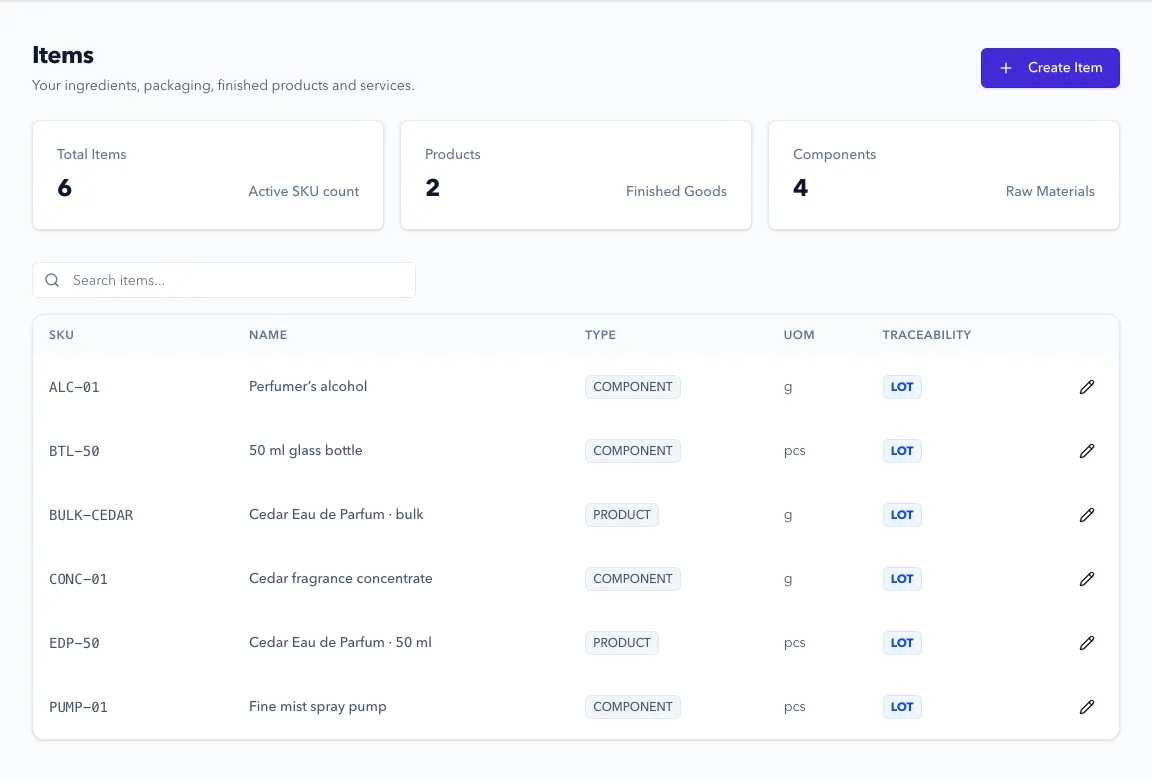
-
Click Create Item.
-
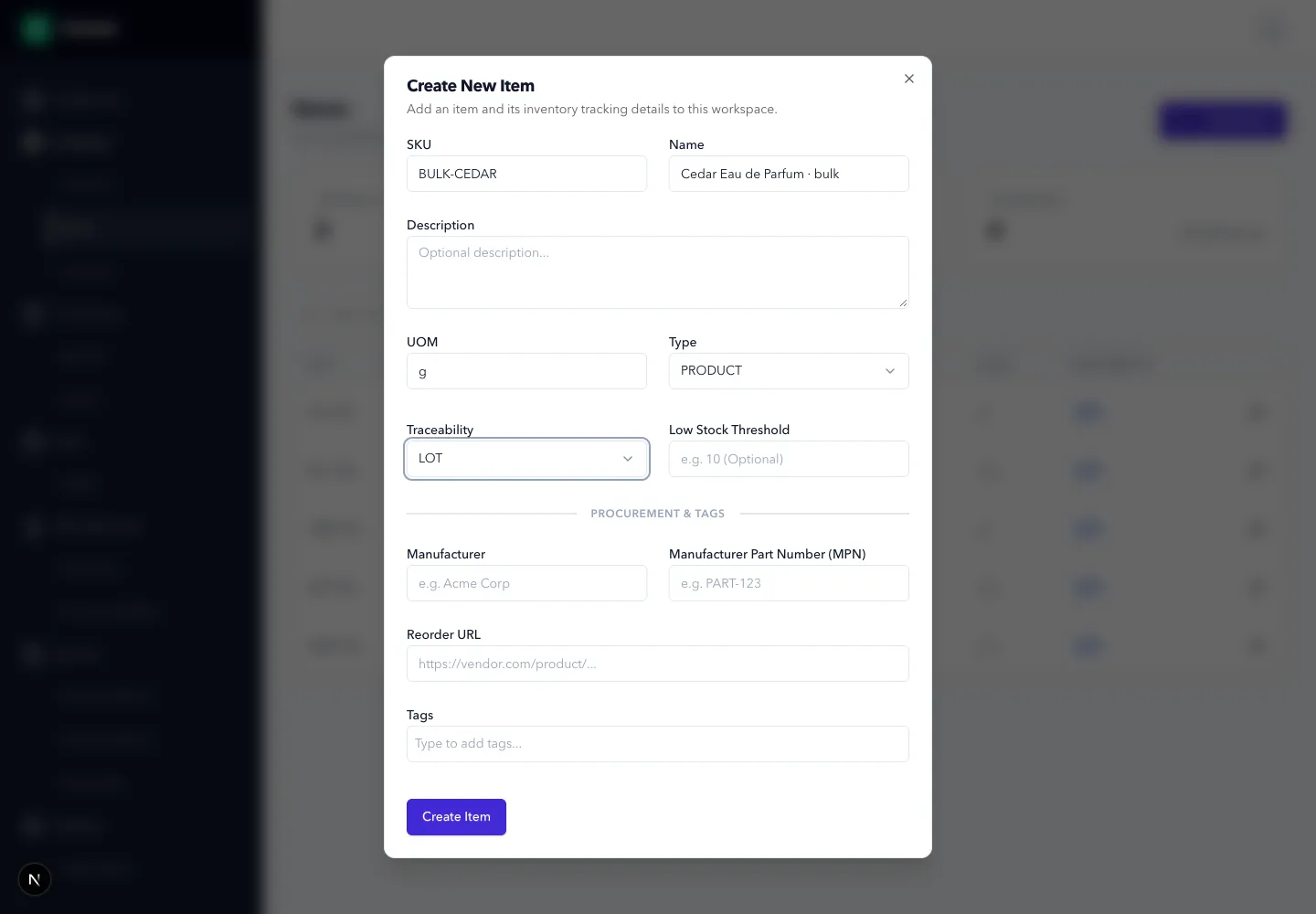
Enter SKU, Name, and UOM (unit of measure). Use names you’d recognize on a shelf or supplier invoice: Soy wax, Coconut oil, or 250 ml glass jar. Keep compatible packaging parts as separate items when you buy and count them separately.
-
Set Type:
- COMPONENT for materials and packaging you buy.
- PRODUCT for products you make, including intermediate batches you package later.
- SERVICE for a non-stock cost included in a production recipe, such as outsourced filling. A service isn’t a physical material to receive or count.
-
Set Traceability:
- LOT to record separate supplier or production lots. Use this for materials and products whose history you need to follow.
- NONE to track a total quantity without requiring a lot on each movement.
-
If useful, set Low Stock Threshold in the item’s unit. For example, a threshold of
200on a bottle tracked ineameans 200 bottles. Choose a level that gives you enough time to reorder; this field doesn’t place an order. -
Under Procurement & Tags, add purchasing details if you have them:
- Manufacturer: who makes the material or packaging part.
- MPN (manufacturer part number): the maker’s reference for the exact part. This is useful for distinguishing similar containers or closures.
- Reorder URL: the supplier’s product page, so you can find the same part again.
-
Click Create Item. Repeat for the other materials and products in your first batch.
Expected Result in Formul
Section titled “Expected Result in Formul”- The item appears in the list and can be used in the relevant purchasing, production, and sales forms.
- Creating an item doesn’t add stock. Stock appears after a receipt, production record, or other inventory movement.
- LOT items require batch details when you receive or consume their stock.
If Something Looks Wrong
Section titled “If Something Looks Wrong”- If saving fails, check the required fields and choose a SKU that isn’t already used in this workspace.
- If you can’t find a product in New Work Order, create a production recipe for it first. The production form lists items that have a bill of materials.
- If lot history matters, confirm LOT is selected before you start receiving and producing. A name alone doesn’t create a traceable batch.
Next Step
Section titled “Next Step”Define storage structure in Managing Locations.