Receive Materials and Packaging
Add a delivery to stock so its materials or packaging can be used in production.
Before You Start
Section titled “Before You Start”- A submitted purchase order with status OPEN or PARTIALLY RECEIVED.
- A stock location for the delivery.
- The delivery note, received quantities, and supplier lot numbers for lot-tracked items.
- Purchase prices entered in the item’s stock unit. If you track an ingredient in grams, both its quantity and unit price need to be per gram.
-
Open the purchase order from Purchasing > Orders and compare it with the delivery.
-
Click Receive Items.
-
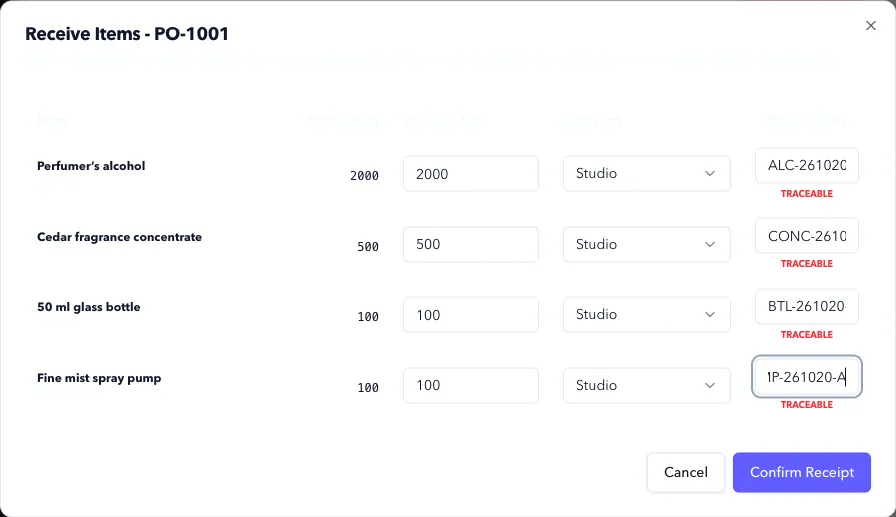
Review each outstanding line in the receiving form.
-
Enter Receive Qty for the stock that arrived. Leave a line at
0if it wasn’t in this delivery. Don’t enter the full ordered quantity for a short delivery. -
Select Location for each line you’re receiving. This determines where the stock becomes available for production or picking.
-
Enter the supplier’s lot number in Batch for each lot-tracked item. Use the code on the container or delivery paperwork so you can match Formul to the shelf later.
-
Check quantities and locations, then click Confirm Receipt.
Expected Result in Formul
Section titled “Expected Result in Formul”- Received quantities increase On Hand stock at the selected locations. They also become available unless another reservation applies.
- Transaction history gains a RECEIPT entry for each received line.
- The order becomes PARTIALLY RECEIVED while quantities remain outstanding, or CLOSED once all lines have been received.
Saving or submitting a purchase order doesn’t add inventory. Confirm Receipt is the action that posts it. Closing the order later stops more receipts; it doesn’t reverse quantities already received. There isn’t an undo-receipt action on the purchase order.
If Something Looks Wrong
Section titled “If Something Looks Wrong”- Receive Items isn’t available: check that the order was submitted and isn’t closed or cancelled.
- A quantity is rejected: you can’t receive more than Remaining. Refresh the order if a teammate has just recorded another delivery.
- A lot number is required: enter the supplier’s code for every lot-tracked line you’re receiving.
- Stock is off by a factor of 1,000: check the unit. For a
gitem, a 1 kg delivery must be entered as1000, not1.
Next Step
Section titled “Next Step”Use these materials in production from Make Overview, or review inventory effects in Manage Ledger.