Fulfillment and Shipping
Record the products leaving your stock for a customer.
Before You Start
Section titled “Before You Start”- Sales order is in
CREATEDorALLOCATEDstatus. - Every line is fully allocated (
Allocated=Ordered) before fulfillment can succeed. - Items are physically picked and packed.
-
Open the target sales order.
-
Open Allocate Inventory and make sure each line reaches full allocation (
Allocated=Ordered).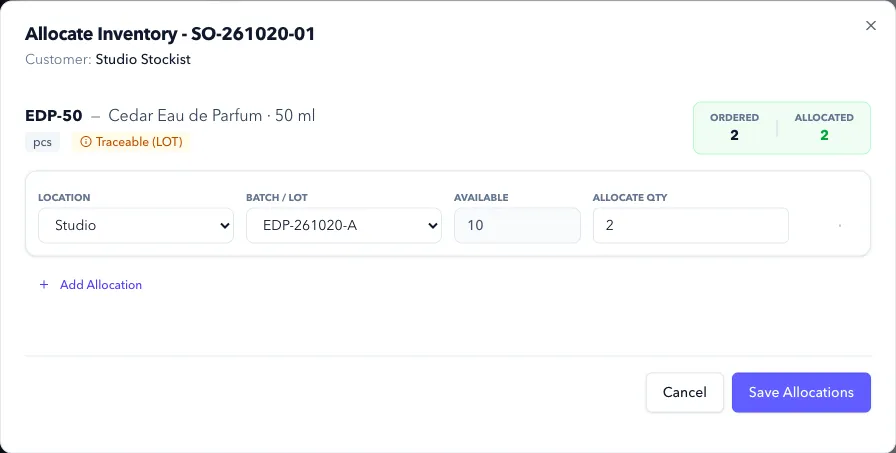
-
Click Fulfill Order.
-
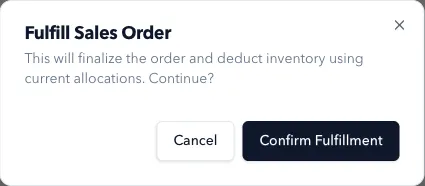
Review Fulfill Sales Order, then click Confirm Fulfillment.
-
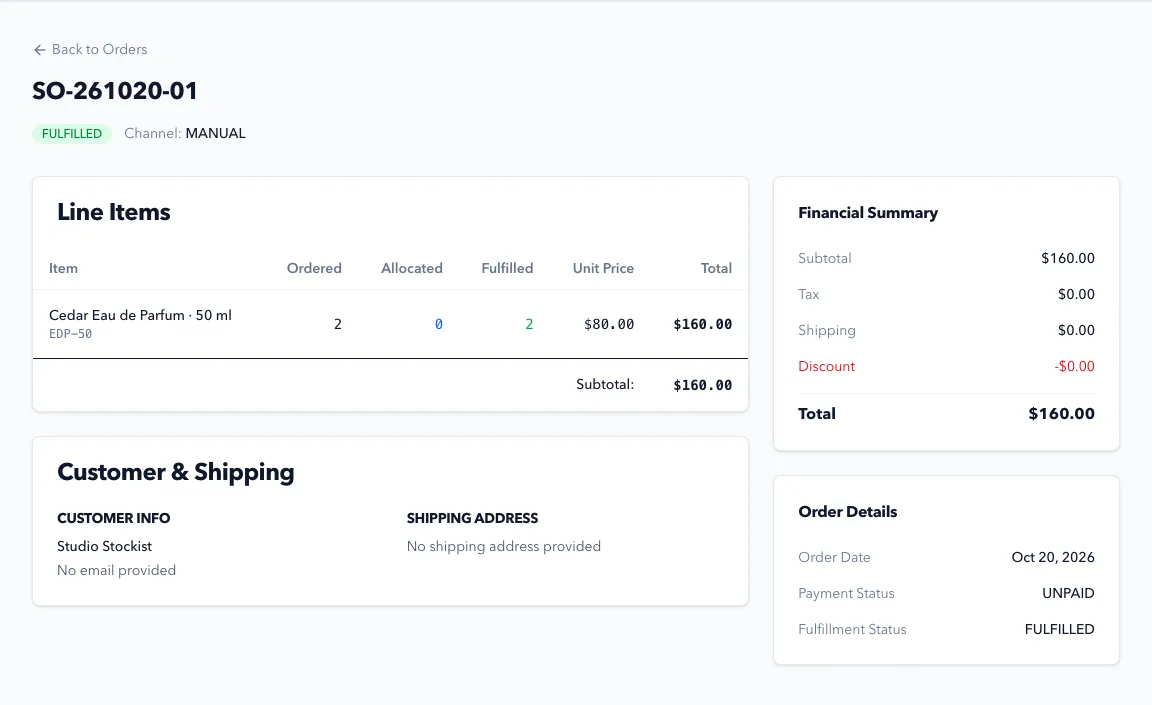
Check that the order now shows FULFILLED.
Expected Result in Formul
Section titled “Expected Result in Formul”- Order status moves to
FULFILLED. - The shipped products leave On Hand stock.
- Their reservations clear, so shipped stock is no longer counted as allocated.
Confirm fulfillment when the order is ready to leave, after checking the picked batch against its allocation. Once fulfilled, the normal order actions don’t let you cancel it or record a return.
Sales Order Status to Ledger Impact (Fulfillment)
Section titled “Sales Order Status to Ledger Impact (Fulfillment)”| Sales order status | Ledger behavior in Formul |
|---|---|
ALLOCATED (before ship) | Stock is reserved using ALLOCATION entries only |
FULFILLED | Formul first reverses active allocation (REVERSAL), then posts shipped quantity (SHIPMENT) which reduces physical on-hand |
Cancellation/reversal after FULFILLED | Not supported through normal order actions; fulfilled orders cannot be cancelled |
If Something Looks Wrong
Section titled “If Something Looks Wrong”- If fulfill button is unavailable, confirm the order is
CREATEDorALLOCATED(notFULFILLED/CANCELLED). - If fulfillment fails with
Line ... is not fully allocated, go back to allocation, allocate remaining quantity, and retry fulfillment. - If balances look incorrect, compare order lines, allocations, and shipment postings.
Next Step
Section titled “Next Step”Measure performance and trace batch history in Analyze Overview.